Critical Inventory Module
Stock Management
This module is the operational core of inventory control. It tracks live stock quantity, inbound and outbound movement, warehouse transfer, adjustment approvals, and customer waitlists.
Part A: Non-Technical Guide (Business Users)
1. What You Can Control
- See live stock for all products and warehouses from Stock Overview.
- Check full stock-in history from purchases.
- Check stock-out history from sales.
- Transfer stock between warehouses with audit trail.
- Review timeline of every stock movement (add, sell, return, transfer, adjustment).
- Use StockGuard approval flow for risky manual stock adjustments.
- Track customer waitlists when products are out of stock.
2. Stock Menu Meaning (Detailed)
| Menu | Detailed Meaning and Practical Use |
|---|---|
| Stock Overview | Live stock snapshot. Shows current quantity by product, variant, and warehouse with category/brand filters. Use this first to know what is available now, check low stock quickly, and verify final quantity after stock-in, stock-out, transfer, or adjustments. |
| Stock History | Inbound stock history from purchase entries. Displays lot, supplier, warehouse, quantity, purchase price, and selling price context. Use this when you need to audit old stock entries, trace which purchase increased quantity, or request quantity correction on a specific inbound line. |
| Stock In | Operational entry point for receiving goods into inventory (usually from supplier purchase). Creates stock lines and increases available quantity. Use this whenever new products arrive physically and must be posted into system stock. |
| Purchase Return | Reverses part/all of a stock-in against supplier return flow. It reduces inventory for returned quantity and keeps financial trace of return amount. Use when damaged/wrong goods are sent back to supplier after purchase. |
| Stock Out | Outbound stock log, mainly generated from sales and related operations. Shows sold quantity, reference invoice, and returnable context. Use this to confirm how stock left the system and to investigate mismatches between expected and actual remaining stock. |
| Stock Transfer | Warehouse-to-warehouse movement module. Deducts quantity from source warehouse and adds quantity to destination warehouse with transfer number and line-level audit. Use when one branch needs stock from another branch without changing company-level ownership. |
| Stock Timeline | Chronological audit trail across all stock events: added, sold, reserved, returned, adjusted, transferred in/out. Includes before and after quantity with reference type/id. Use this as the primary forensic screen when debugging any inventory discrepancy. |
| StockGuard | Controlled manual adjustment system with thresholds and approval workflow. High-risk quantity/value edits are flagged and can require approval before applying. Use this instead of direct unsafe edits to keep governance, accountability, and tamper-resistant audit records. |
| Waitlists | Customer demand queue for out-of-stock items. Tracks requested, fulfilled, reserved, claimed, released, or cancelled states. Use this to avoid losing sales opportunities and to fulfill customers in sequence when stock is replenished. |
3. Daily Operations Flow (Recommended)
- Receive goods with Stock In.
- Verify updated quantity in Stock Overview.
- If warehouse balancing needed, use Stock Transfer.
- Monitor outgoing sales from Stock Out.
- If mismatch found, use StockGuard request instead of direct unsafe edits.
- If demand exceeds stock, monitor Waitlists.
- Audit all events from Stock Timeline.
4. Common Business Rules
- Source and destination warehouse cannot be the same in transfer.
- Transfer quantity cannot exceed available source quantity.
- StockGuard can force approval for high quantity/value adjustments.
- Cancelled waitlist automatically releases reserved quantities.
- Returned purchase or sales updates stock movement history automatically.
5. How to Add / Edit in Each Stock Section (Step by Step)
Stock Overview
- Add: This section is read-only. New rows appear automatically after Stock In, Transfer, Return, or approved StockGuard adjustments.
- Edit: Direct edit is not done here. To change quantity, go to Stock History update flow or StockGuard request flow.
- Use: Search/filter by category, brand, warehouse, demand tag and verify final available stock.
Stock History
- Go to Stock > Stock History.
- Find the line by product, lot, warehouse, supplier, or date filters.
- Click quantity update action icon on target row.
- Enter invoice number and new quantity input (as per allowed rules).
- If StockGuard is active, provide valid reason and note where required.
- Submit update and recheck row plus totals.
Stock In
- Go to Stock > Stock In (purchase create).
- Select supplier and warehouse.
- Add products, lot/variant/price/qty fields properly.
- Save purchase invoice.
- Verify stock increment from Stock Overview and Stock History.
- Edit existing Stock In: Open related purchase record, update line values, and save (subject to business/permission constraints).
Purchase Return
- Go to Stock > Purchase Return.
- Select original purchase/invoice.
- Choose return items and return quantities.
- Submit return with reason/note if your process requires.
- Confirm stock is reduced and return record appears in history.
- Edit: Usually handled via correction entry or additional return/payment action, not arbitrary overwrite.
Stock Out
- Add: Auto-created from sales flow. You do not manually create stock-out rows from this page.
- Edit: Edit source sales invoice/return flow; stock-out reflects from source transaction.
- Use: Audit sold quantity, invoice reference, and returnable quantity.
Stock Out Screen (POS Sale) Detailed Breakdown
- Customer Search (top): Search customer by phone/name and attach customer to invoice. If not found, use the add button to create/select a new customer.
- Customer Info Card: Shows selected customer profile (name, email, phone, address, tax/NID, rewards). This confirms sale is going to the correct customer account.
- Product Search Bar: Search by product name, barcode, or combo bundle. Scanned barcode also resolves here for fast billing.
- Quick Action Icons near product search: Add product line and shortcut operations like Sell Return, Create Quotation, and Customer Waitlist (based on enabled features and permissions).
- Item Table: Each row is a sell line. Columns include Product, Quantity, Unit Price, Discount %, VAT %, and Total Price. Quantity edits directly affect stock deduction after confirm.
- Row Controls: Add row button creates another line; remove button deletes line before final confirm.
- Billing Panel (right side): Calculates Subtotal, Discount (amount or percent mode), VAT, Grand Total, Paid, Due, and Change Due in real time.
- Payment Method Area: Select payment type (Cash/Card/Other configured methods). Plus button allows split/multiple payment lines when enabled.
- Notes: Optional sale note for cashier/admin reference (used later in audit/reporting).
- Confirm (Ctrl+S): Finalizes sale and creates stock-out movement. Inventory is reduced from matched stock lines (lot/warehouse policy based).
- Draft (Ctrl+D): Saves bill as pending draft without completing stock-out transaction.
- Cancel (Ctrl+C): Clears current cart form without posting sale.
- Draft List (Ctrl+L): Opens saved drafts to resume/edit and confirm later.
Stock Out Processing Rules
- Stock is deducted only after Confirm, not while typing line items.
- If item stock is insufficient, system should block confirmation or require valid override flow based on permissions/settings.
- Discount and VAT are calculated line-wise and invoice-wise, then reflected in billing totals.
- On successful sale, stock-out records become visible in stock-out report/list and timeline audit.
- If sale return is processed later, corresponding return movement adjusts previously deducted stock.
Special Buttons Near Product Search
| Button/Option | What It Does | When To Use |
|---|---|---|
| Sell Return | Starts return flow against an already sold invoice. Returned quantity is validated and stock is added back according to return policy. | Use when customer brings back previously sold item and you need refund/adjustment. |
| Create Quotation | Saves selected products, prices, and discounts as a quote without final sale posting and without immediate stock-out transaction. | Use when customer wants price proposal first and will confirm purchase later. |
| Customer Waitlist | Creates a waitlist request for out-of-stock/insufficient-stock products by linking customer and requested quantity. | Use when demand exists but stock is not available now; fulfill later after restock. |
- These buttons are feature-driven and permission-driven. If feature is disabled or right is missing, the button may not appear.
- Sell Return affects stock movement immediately after return approval/confirmation.
- Quotation keeps commercial data for follow-up but does not behave as completed invoice.
- Waitlist helps capture missed sales opportunities and supports later reservation/claim flow.
Stock Transfer
- Go to Stock > Stock Transfer.
- Select From Warehouse and To Warehouse.
- Select transfer date.
- Select source stock item line (product/variant/lot).
- Enter transfer quantity and click Add Line.
- Add all required lines, review before/after qty preview.
- Click Create Transfer.
- Verify transfer appears in Recent Transfers list and Stock Overview.
- Edit: Existing transfer is typically immutable for audit safety. Do reverse transfer/correction transaction if needed.
Stock Timeline
- Add/Edit: Timeline is auto-generated from stock events; manual add/edit is not allowed.
- Use: Filter by movement type, warehouse, date range, and trace before/after quantities with reference id.
StockGuard
A) Create Adjustment Request
- Go to Stock > StockGuard.
- Select inventory item.
- Enter quantity change (+/-), choose reason, add note if required.
- Submit request.
- If below thresholds, it may auto-apply; otherwise it goes pending.
B) Approve / Reject Request
- Open pending request list.
- Review qty change, reason, flags, and user info.
- Click Approve to apply stock change or Reject with note.
C) Edit Rules
- Open Rules tab.
- Update unit threshold and value threshold.
- Save rules and validate with a test request.
Waitlists
A) Add Waitlist
- Waitlist rows are commonly created from sales/POS out-of-stock flow.
- Required data: customer + product + requested qty.
B) View / Manage
- Go to Stock > Waitlists.
- Search/filter by customer/product/status.
- Open details drawer from view action.
C) Cancel / Release / Claim
- Cancel action closes waitlist and releases reserved quantities back to stock.
- Claim marks reserved quantity as completed pickup/sale.
- Release returns reservation to available stock without full cancellation.
Part B: Technical Documentation (Developers / Technical Admin)
1. Frontend File Map
frontend-source/src/pages/stock/Stock.jsx- stock overview list, filters, export/copy, page totals, timeline modal trigger.frontend-source/src/pages/stock/StockHistory.jsx- stock-in history list, filters, quantity update modal.frontend-source/src/pages/stock/StockTransfers.jsx- warehouse transfer create form and transfer history.frontend-source/src/pages/stock/StockTimeline.jsx- global movement timeline with summary cards and filters.frontend-source/src/pages/stock/StockGuard.jsx- adjustment request review, approve/reject, threshold rules setup.frontend-source/src/pages/stock/Waitlists.jsx- waitlist list/details/cancel flow.
2. Backend File Map
app/Http/Controllers/Api/PurchaseController.php+app/Services/Api/PurchaseControllerService.php- stock overview, stock-in list, quantity update.app/Http/Controllers/Api/StockController.php+app/Services/Api/StockService.php- stock-out and stock movement timeline API.app/Http/Controllers/Api/StockTransferController.php+app/Services/Api/StockTransferService.php.app/Http/Controllers/Api/StockGuardController.php+app/Services/Api/StockGuardService.php.app/Http/Controllers/Api/WaitlistController.php+app/Services/Api/WaitlistService.php.
3. Core Endpoints (Stock Domain)
| Method | Endpoint | Use |
|---|---|---|
| GET | /api/v1/stock/overview | Stock Overview grid with filters and totals |
| GET | /api/v1/stock-in-list | Stock History list (purchase items) |
| POST | /api/v1/purchases/update-quantity | Adjust stock-in quantity (StockGuard-aware) |
| GET | /api/v1/stock/out | Stock Out records from sales |
| GET | /api/v1/stock/movements | Stock Timeline movement feed |
| GET | /api/v1/stock-transfers | Transfer history |
| GET | /api/v1/stock-transfers/source-items | Transfer source inventory items |
| POST | /api/v1/stock-transfers | Create warehouse transfer |
| GET | /api/v1/stockguard/options | Reasons, thresholds, and inventory options |
| PUT | /api/v1/stockguard/rules | Update StockGuard thresholds |
| GET | /api/v1/stockguard/requests | List stock adjustment requests |
| POST | /api/v1/stockguard/requests/{id}/approve | Approve pending request |
| POST | /api/v1/stockguard/requests/{id}/reject | Reject pending request |
| GET | /api/v1/waitlists | Waitlist list view |
| GET | /api/v1/waitlists/{id} | Waitlist details |
| POST | /api/v1/waitlists/{id}/cancel | Cancel and release reserved quantity |
4. Stock Overview Logic Notes
- Data source:
Inventorywithinventory_items.quantity > 0. - Demand tag filter uses
whereJsonContains('demand_tags'). - Category filter includes child categories recursively.
- Visible stock is adjusted by reserved bundle component quantity.
- Response returns
grand_total_qtyandgrand_total_purchase_price.
5. Stock Transfer Technical Rules
- Validation: source warehouse, destination warehouse, transfer date, item lines required.
- Execution uses DB transaction + row locking (
lockForUpdate). - Deducts quantity from source
inventory_itemsand sourceinventory. - Creates/updates destination
inventoryand inserts destinationinventory_itemsline. - Writes auditable transfer lines in
stock_transfer_items. - Generates timeline entries:
transferred_outandtransferred_in.
6. StockGuard Deep Technical Explanation
A) Feature Switch and Access
- Primary feature code:
ftr_stockguard. - Defined in
app/Data/FeaturePreference.phpasSTOCKGUARD. - Service-level guard:
StockGuardService::ensureEnabled()blocks API when feature is disabled. - Routes:
/stockguard/options,/stockguard/rules,/stockguard/requests, approve/reject endpoints.
B) Database Structure (from migrations)
1. Adjustment Table: stock_adjustment_requests (created by migration 2026_05_15_000006)
| Column | Purpose |
|---|---|
id (string, 40, PK) | Unique adjustment request id. |
company_id, product_id | Tenant and product scope. |
inventory_id, inventory_item_id | Exact inventory summary and lot-level row affected. |
warehouse_id | Warehouse where adjustment applies. |
qty_change | Positive or negative stock change request. |
quantity_before, quantity_after | Before/after stock for audit trace. |
unit_cost, value_change | Cost impact of quantity change. |
reason, note | Business justification and extra context. |
status | pending/approved/rejected/applied state machine. |
flags (json), is_flagged | Risk flags from threshold/rule engine. |
requested_by, approved_by, timestamps | Who requested/approved and when. |
2. Company Rule Columns: migration 2026_05_24_000010 adds:
company.stockguard_unit_threshold(default 5)company.stockguard_value_threshold(default 100)
C) Reason, Status, and Flag Enums
- Reasons: stock_count_correction, damaged, expired, lost, internal_use, found_stock, supplier_shortage, other.
- Note required: when reason is
other. - Statuses:
pending,approved,rejected,applied. - Flags:
high_quantity,high_value,suspicious_reason.
D) Approval Decision Algorithm
Implemented in app/Data/StockGuardConfig.php:
- Approval required if
abs(qty_change) >= unit_threshold. - Approval required if
abs(qty_change * unit_cost) >= value_threshold. - Also forced pending if suspicious reason rule triggers for negative adjustment.
requiresApproval = abs(qty_change) >= unit_threshold
               OR abs(qty_change * unit_cost) >= value_threshold
E) Request Lifecycle
- User submits adjustment request from StockGuard screen.
- System validates inventory item, reason, note requirement.
- System calculates flags and decides immediate apply vs pending.
- If immediate: updates
inventory_items.quantityandinventory.quantity, marks requestapplied. - If pending: creates request with
pending, no stock mutation yet. - Approver can approve/reject pending request.
- On approve: adjustment applied and status becomes
applied. - On reject: status becomes
rejectedwith optional rejection note.
F) Stock Movement Integration
- Every applied adjustment writes an audit entry via
StockMovementService::record(). - Movement type:
adjusted. - Reference type:
manual_adjustment. - Stock Timeline module then shows this event with before/after quantity and actor.
G) Quantity Update from Stock History and StockGuard
PurchaseControllerService::updateQuantity()is StockGuard-aware.- When StockGuard feature is enabled, reason validation and threshold checks apply before stock mutation.
- If approval is required, a pending adjustment request is created instead of direct quantity apply.
7. Waitlist State Behavior
- Status flow includes pending, partially_reserved, reserved, notified, completed, cancelled.
- Claim marks reserved rows claimed and closes waitlist as completed.
- Release or cancel restores reserved quantities back to inventory and inventory items.
- Cancel prevents action on already closed waitlists.
8. Key Filters and Sort Fields
| Screen | Key Filters | Sort |
|---|---|---|
| Stock Overview | search, category, brand, warehouse, demand_tag | product/qty/price via frontend config |
| Stock History | search, supplier, category, brand, warehouse, status | created_at, qty, lot_number, expiry_date |
| Stock Out | filterText, category, brand, status, date range | created_at and requested field |
| Stock Timeline | search, type, warehouse_id, startDate, endDate | latest first |
| Waitlists | filterText, status | created_at, requested_qty, status |
9. Troubleshooting
| Issue | Likely Cause | Resolution |
|---|---|---|
| Timeline not loading | Feature disabled | Enable stock movement timeline feature preference. |
| Quantity update blocked | StockGuard enabled but reason/note missing | Provide valid reason and mandatory note when required. |
| Transfer fails | Insufficient source qty or wrong source item warehouse | Recheck selected source line and available qty. |
| Waitlist cancel not changing stock | No reserved rows existed | Verify reservation state before cancellation. |
| Stock mismatch | Manual adjustment without approval trace | Use StockGuard request flow and audit from timeline. |
Screenshots
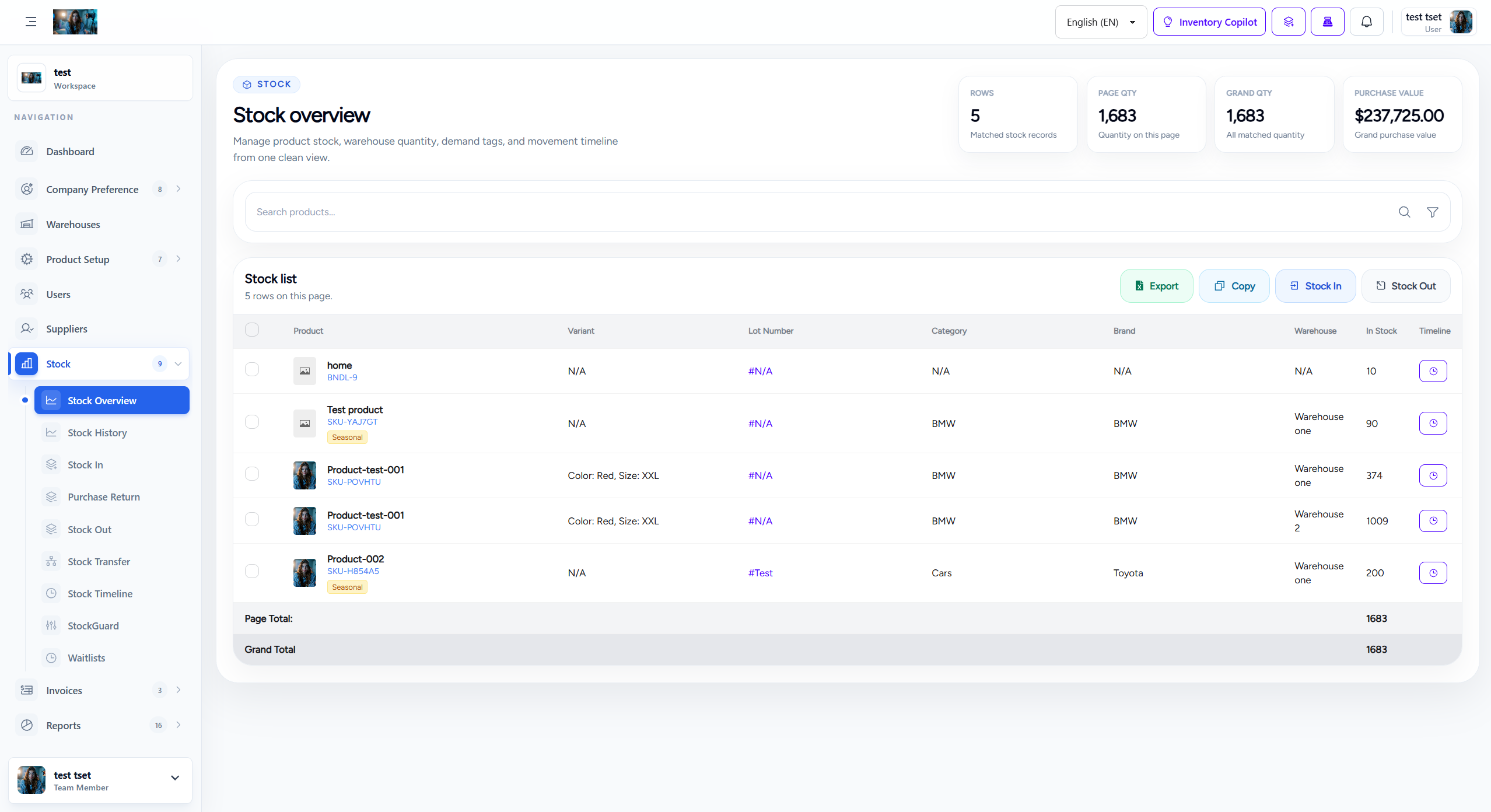
Stock overview screen
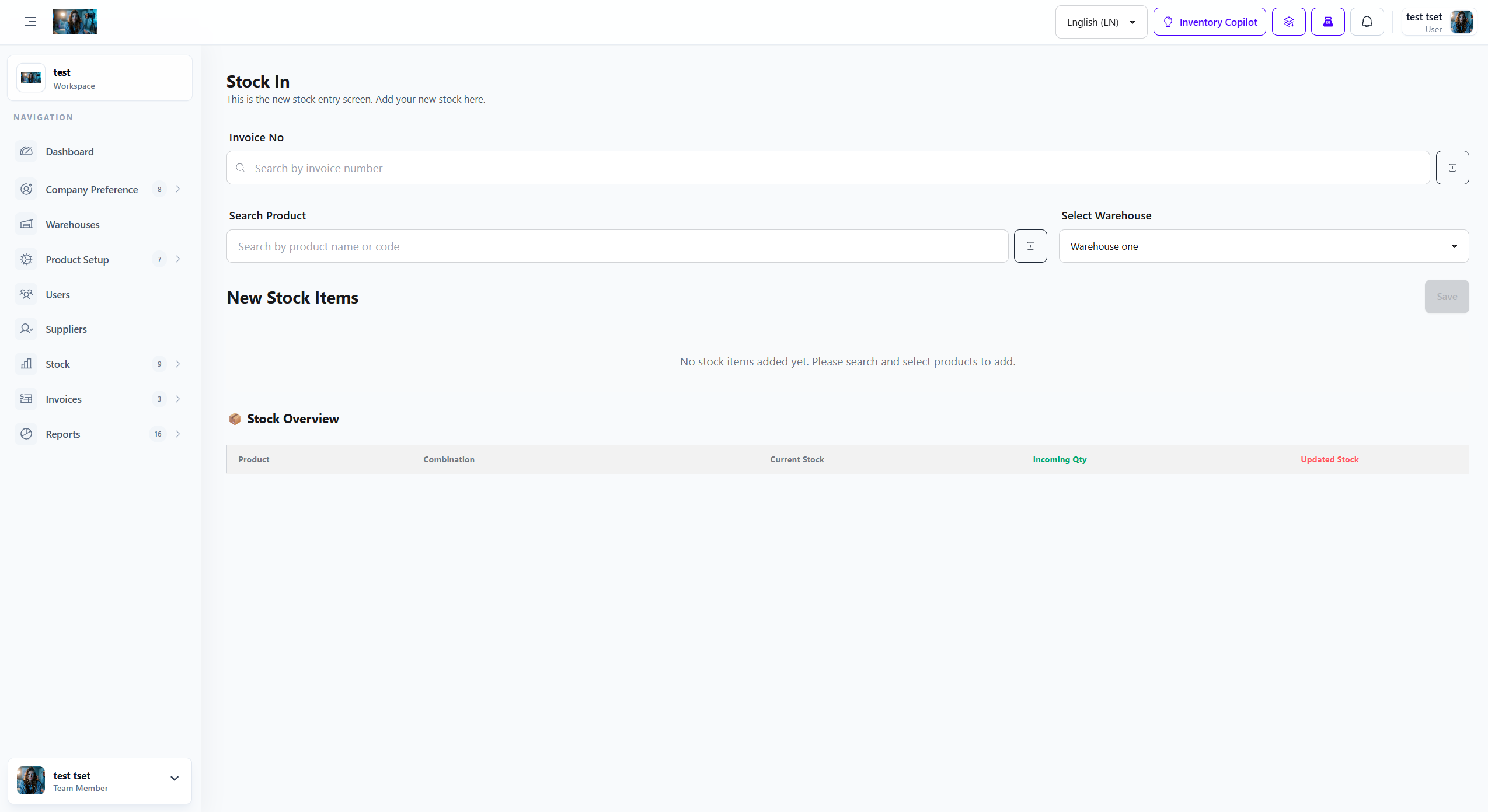
Stock in workflow
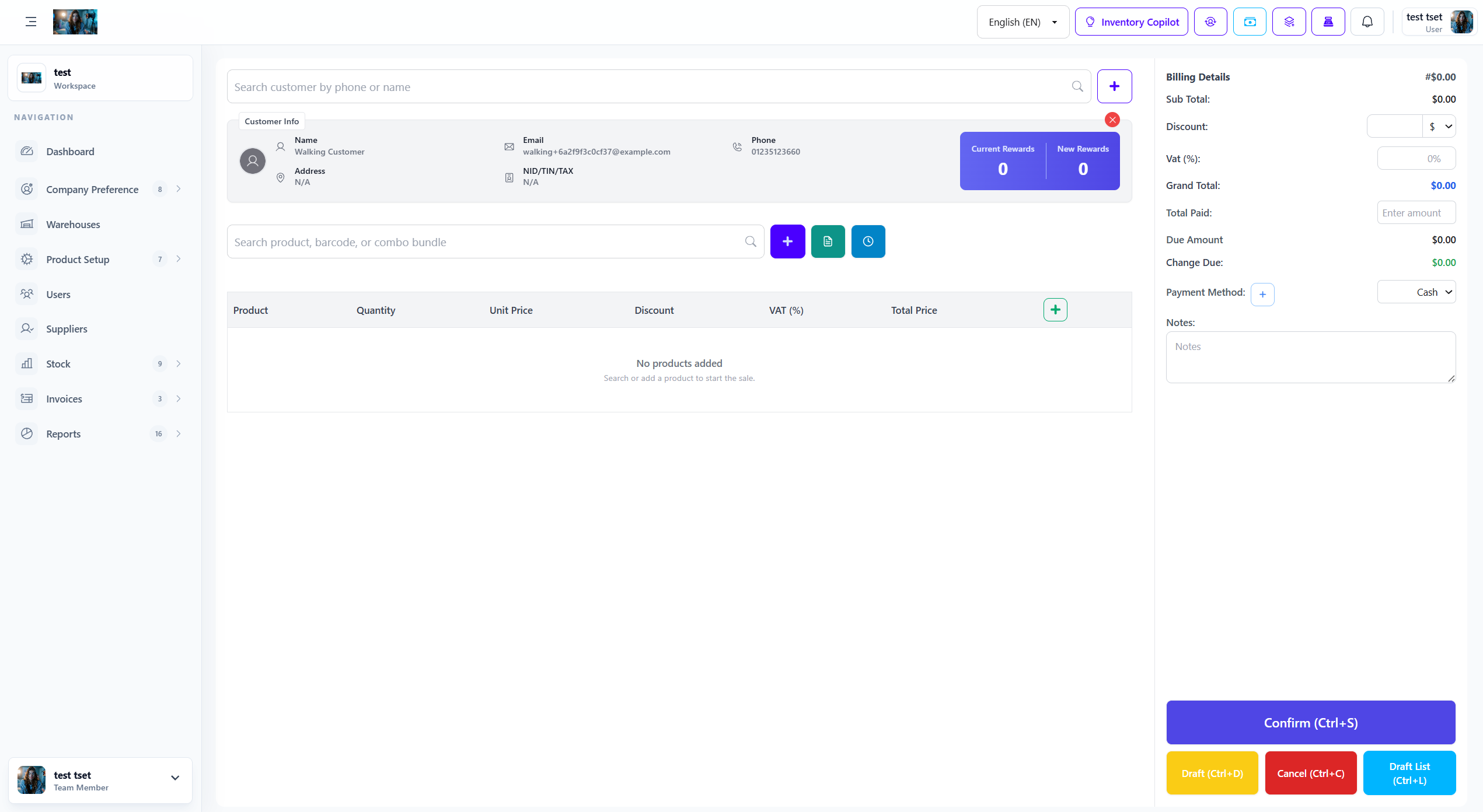
Stock out workflow
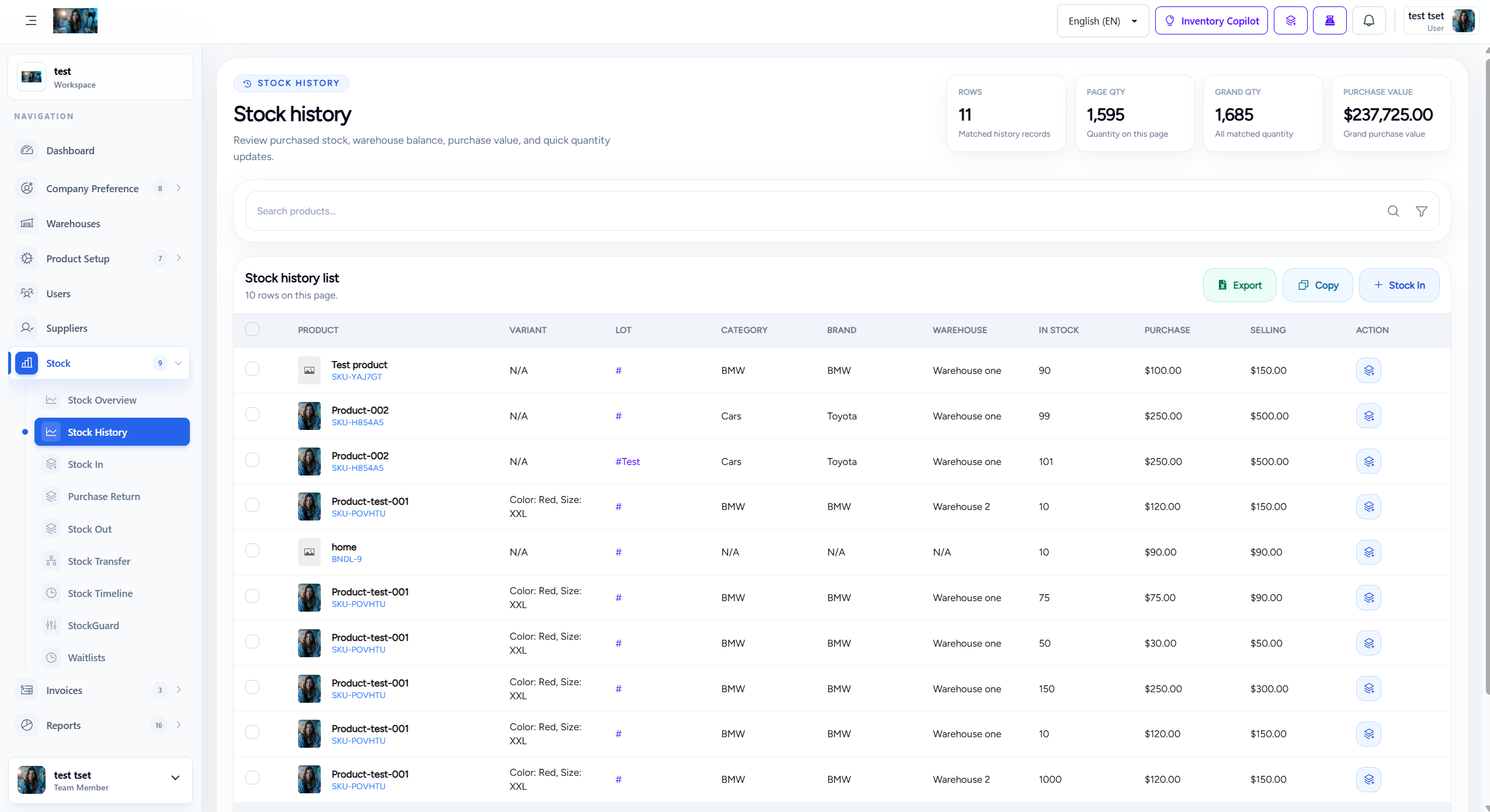
Stock history and audit view