v1.0.0 Stable
Company Details
What This Option Does
Company Details is a focused profile page for one tenant. It helps the backoffice admin review the company profile, check users, control access, sync rights, sync feature preferences, and support the tenant without moving between many screens.
How Admin Uses This
- Open company details from the Companies list by clicking the view/details action.
- Review company identity, owner/admin information, contact details, status, and linked account data.
- Check the company users list to understand who can access the tenant workspace.
- Apply required updates through available actions such as rights sync, feature preference sync, user review, or impersonation.
- Save changes and re-check the tenant side to confirm menus, permissions, and access behavior are correct.
How This Page Works
The Company Details page works as the control center for one tenant company. The Companies list shows all tenant records, while this page focuses on one selected company and exposes deeper operational actions.
Company Profile Review
- Shows the company's basic information such as name, contact details, address, business profile, and current account status.
- Helps support teams confirm whether the correct tenant is selected before changing access, features, or rights.
- Should be reviewed before any permission change because the same backoffice admin may manage many companies.
- If company profile data is wrong, update it from the Companies edit action first, then return to this details page for access setup.
Company Users Review
- Displays users connected with the selected company so admins can verify who belongs to the tenant.
- Use this area to confirm the tenant administrator account before applying sensitive changes.
- Check user status before investigating login issues. A company may be active while a specific user is inactive or blocked.
- After company-level rights or features are changed, ask affected users to refresh or log in again so the latest access rules are loaded.
Impersonation Flow
- Open the company details page for the tenant that needs support.
- Find the target user from the company users list.
- Click impersonate only when support or troubleshooting requires seeing the tenant workspace as that user.
- Perform the minimum required verification, such as checking menu visibility, missing permissions, or feature access.
- Exit impersonation immediately after the support check and keep an audit note for the action.
Rights Sync Flow
- Open the rights action from the company details page.
- Review the rights matrix for modules such as products, stock, sales, purchases, reports, users, settings, and company preferences.
- Enable only the actions the company should be allowed to use. Avoid enabling admin-level or destructive rights unless required.
- Save or sync the rights for the selected company.
- Verify from the tenant side that blocked actions are hidden or rejected and allowed actions work normally.
Feature Preference Sync Flow
- Open the feature preferences action from the company details page.
- Review the feature list assigned to the company or inherited from the plan.
- Enable modules included in the company's plan, such as inventory, POS, reports, rewards, discounts, demand tags, warehouse features, or accounting features.
- Disable features that are not included in the plan or are not ready for that tenant.
- Save or sync feature preferences and verify the tenant menu, dashboard cards, and related pages reflect the new setup.
Status and Access Checks
- Company status controls whether the tenant should be allowed to operate normally.
- If the company is inactive or suspended, users may be unable to log in or access tenant modules.
- If a user reports missing menus while the company is active, check feature preferences first and rights second.
- If a user can see a menu but cannot perform an action, check rights and role permissions for that company.
Common Support Scenarios
- Tenant cannot log in: verify company status, user status, email, and subscription/payment state if plan controls are enabled.
- Menu is missing: verify feature preferences for that company and confirm the feature is enabled.
- Button or action is blocked: verify company rights and tenant role permissions.
- Wrong company data appears: confirm the selected company ID and review the profile before making changes.
- Support needs to reproduce an issue: use impersonation carefully, record the reason, and exit after verification.
Screenshot Placeholder
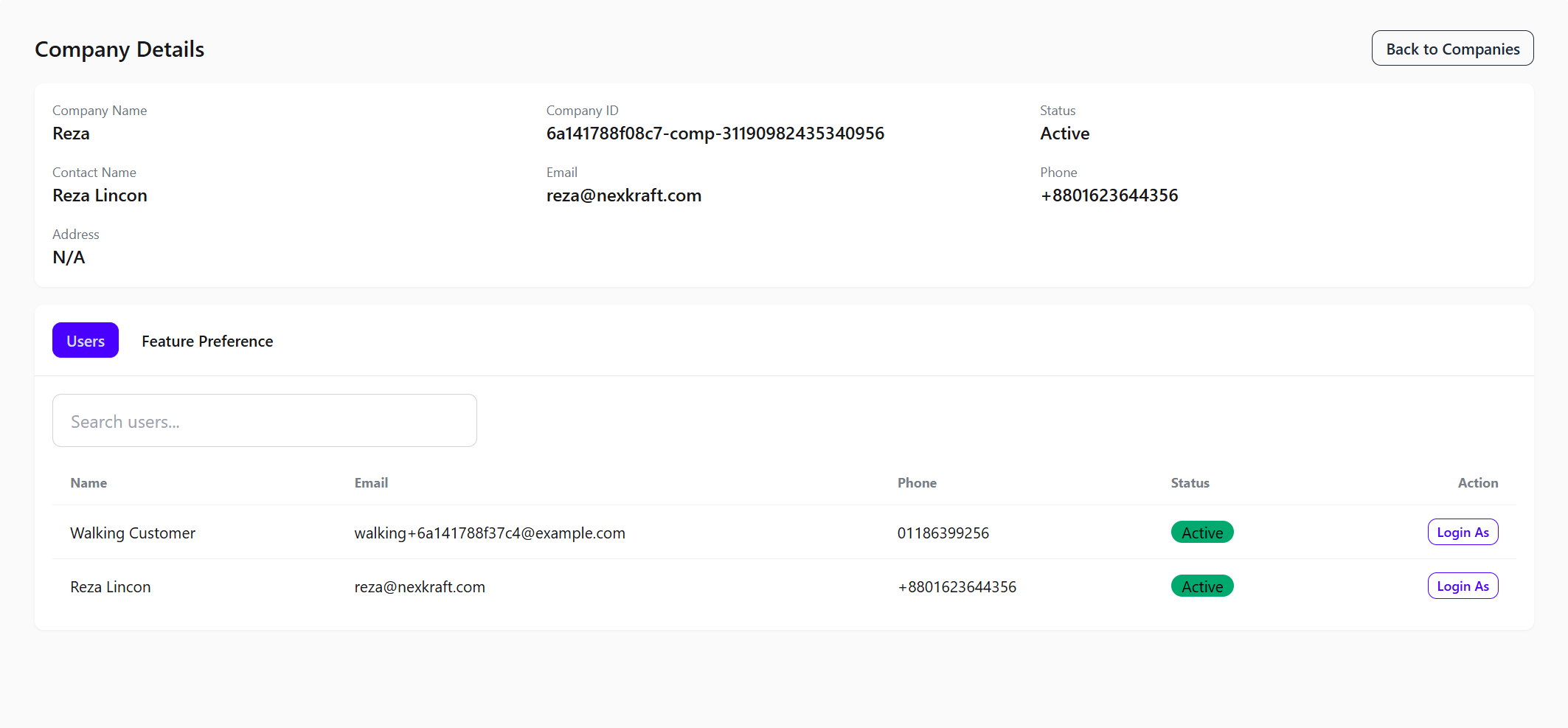
Add screenshot file at
documentaion/assets/images/backoffice-company-details.pngEnterprise Technical Specification
Business Capabilities
- Company profile deep view
- Company users list
- Impersonation
- Company rights sync
- Company feature preferences sync
- Tenant access troubleshooting
- Company-level permission verification
- Support workflow for tenant-specific issues
API Contract Surface
Primary API endpoints used by this module:
/api/v1/backoffice/companies/{id}/api/v1/backoffice/companies/{id}/users/api/v1/backoffice/companies/{id}/users/{userId}/impersonate/api/v1/backoffice/companies/{id}/rights/api/v1/backoffice/companies/{id}/feature-preferences/api/v1/backoffice/companies/{id}/feature-preferences/sync
Permission Blueprint
Recommended permission keys for production role design:
backoffice.company.viewbackoffice.company.impersonatebackoffice.company.rights.managebackoffice.company.features.managebackoffice.company.users.view
Operational Risk and Control Notes
- Impersonation misuse can expose tenant data, so use it only for approved support cases.
- Incorrect rights sync can grant sensitive actions such as delete, update, stock adjustment, payment, or settings access.
- Incorrect feature preference sync can hide required modules or expose plan-restricted modules.
- Company-level changes may affect every user under that tenant, not only one user.
- Enable activity logging and include
company_id, actor ID, and target entity ID in audit traces. - Apply least-privilege principle for create/update/delete actions.
QA Verification Checklist
- Validate company details API load, loading state, empty state, and invalid company ID behavior.
- Verify company users list loads only users connected with the selected company.
- Confirm impersonation starts for authorized backoffice users and is blocked for unauthorized roles.
- Verify rights sync response contract and confirm the tenant side receives the updated access rules.
- Verify feature preference sync response contract and confirm tenant menus update correctly.
- Test inactive/suspended company behavior against tenant login and module access.
- Confirm permission denial responses for unauthorized backoffice roles.