v1.0.0 Stable
Company Preference - Roles
Roles preferences allow you to define user roles within your company, assign permissions, and control access to different features and functionalities.
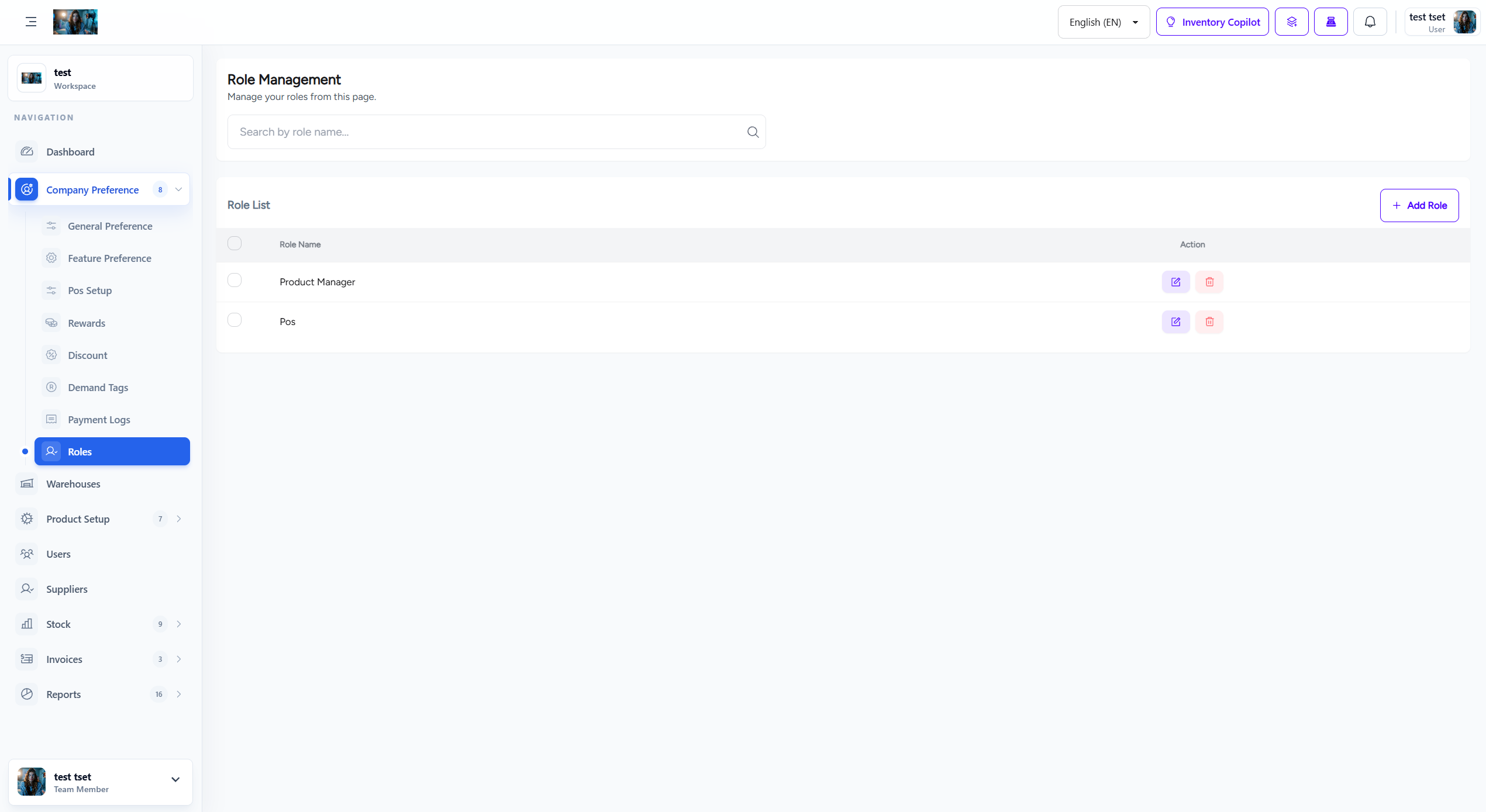
Figure 1.0: The Roles settings interface.
1. Overview
Roles and permissions system provides granular control over what users can access and perform within the platform.
- Role-Based Access: Define roles with specific permission sets.
- Permission Control: Grant or deny access to specific features and actions.
- User Assignment: Assign users to appropriate roles based on their responsibilities.
- Audit Trail: Track role changes and permission assignments.
2. Default Roles
The system includes pre-configured roles with standard permission sets:
| Role | Description | Key Permissions |
|---|---|---|
| Admin | Full system access with all permissions. | All permissions |
| Manager | Management access with most operational permissions. | Products, Sales, Purchases, Reports |
| Cashier | POS operations and sales processing. | POS, Sales, Customers |
| Warehouse Staff | Stock management and warehouse operations. | Stock, Purchases, Transfers |
| Viewer | Read-only access to reports and dashboards. | Reports, Dashboard (view only) |
3. Permission Categories
Permissions are organized into functional categories:
- Dashboard: Access to dashboard and analytics.
- Products: Product creation, editing, and deletion.
- Stock: Stock management, transfers, and adjustments.
- Sales: Sales processing, invoicing, and returns.
- Purchases: Purchase orders and returns.
- Reports: Report generation and viewing.
- Users: User management and role assignment.
- Settings: System configuration and preferences.
4. How to Configure Roles
Follow these steps to configure roles and permissions:
- Navigate to Company Preference > Roles from the sidebar menu.
- Review existing roles and their permission sets.
- Create custom roles by clicking "Add New Role".
- Assign permissions by checking/unchecking permission boxes.
- Assign users to roles in the User Management section.
- Click Save to apply role changes.
Important Note: Role changes affect user access immediately. Test role configurations with test users before applying to production accounts.
5. Best Practices
Follow these best practices for role and permission management:
- Principle of Least Privilege: Grant only necessary permissions for each role.
- Role Hierarchy: Maintain clear role hierarchy for easy management.
- Regular Audits: Audit role assignments and permissions quarterly.
- Documentation: Document role responsibilities and permission sets.
- Separation of Duties: Separate critical functions across different roles.