Most Important Module
Product Management
This page is the heart of your inventory. From here you can add products, update products, control stock visibility, apply tags, export product data, and manage product status.
What You Can Do Here
- Create a new product with image, price-related details, category, brand, and unit.
- Edit product information at any time.
- Search products quickly by name or SKU.
- Filter by category, brand, demand tag, and status.
- Set products as active/inactive.
- Delete one product or multiple products.
- Export product list to CSV, copy to clipboard, and print barcodes.
Page Layout (Simple Guide)
- Top search bar: Type product name/SKU to find items quickly.
- Filter icon: Open advanced filters (category, brand, status, demand tag).
- Action buttons: Export, copy, barcode print, and add product.
- Product table: Shows image, name, SKU, type, category, brand, stock, and status.
- Pagination: Move between pages when you have many products.
How To Add a Product
- Go to Product Setup > Products.
- Click Add.
- Fill basic details: Name, SKU, Category, Brand, Unit, VAT, status.
- If needed, enable and set: Variants, segments, demand tags, and stock visibility label.
- Add description and upload/take product image.
- Click Create Product.
How To Edit a Product
- Find your product from the list.
- Click the Edit icon in the Actions column.
- Update needed fields.
- Click Update Product.
Field Meanings (User Friendly)
| Field | Meaning |
|---|---|
| Product Name | The display name customers and staff see. |
| SKU | Your unique internal product code. |
| Category | Product group (for filtering and reports). |
| Brand | Manufacturer or brand name. |
| Unit | Measurement unit (Piece, Box, Kg, etc.). |
| Variant | Options like Color, Size, RAM, Storage. |
| Segment | Extra custom labels for organization. |
| Demand Tags | Labels like fast moving/seasonal to classify demand. |
| Stock Visibility | Choose if buyers can see stock amount. |
| Status | Active products are usable in operations; inactive are hidden from normal flow. |
Bulk Actions
- Select products from the checkbox column.
- Use: Set Active, Set Inactive, or Delete.
- Confirm the popup message to apply changes.
Export and Barcode
- Excel/CSV Export: Download selected/all product rows.
- Copy: Copy product table data to clipboard.
- Barcode Print: Print barcodes for selected products.
Common Problems and Fixes
| Problem | Reason | Solution |
|---|---|---|
| Cannot save product | Missing required fields | Fill name, SKU, category, brand, and unit first. |
| SKU error | SKU already exists | Use a different SKU. |
| Variant step error | Duplicate or incomplete variant row | Complete each row and avoid duplicates. |
| Sales channel error | Total percent above 100 | Keep total at 100 or below. |
| Image not uploading | Invalid type/size | Use jpg, jpeg, png, webp, or gif and smaller image size. |
| Stock looks lower | Reserved stock for bundles is deducted | Check bundle reservations and stock movement. |
Best Practice for Daily Use
- Use a clear SKU rule (example: category + serial).
- Always assign correct category and brand for accurate reports.
- Use demand tags consistently for better planning.
- Keep inactive products instead of deleting if you need history.
- Run quick export weekly as a business backup habit.
Technical Note (For Admin/Developer)
This documentation page is based on the actual implementation in:
frontend-source/src/pages/product-setup/products/Products.jsxfrontend-source/src/pages/product-setup/products/components/ProductAddForm.jsxfrontend-source/src/pages/product-setup/products/components/EditProductModal.jsxfrontend-source/src/api/products.jsapp/Http/Controllers/Api/ProductController.phpapp/Services/Api/ProductControllerService.php
Screenshots
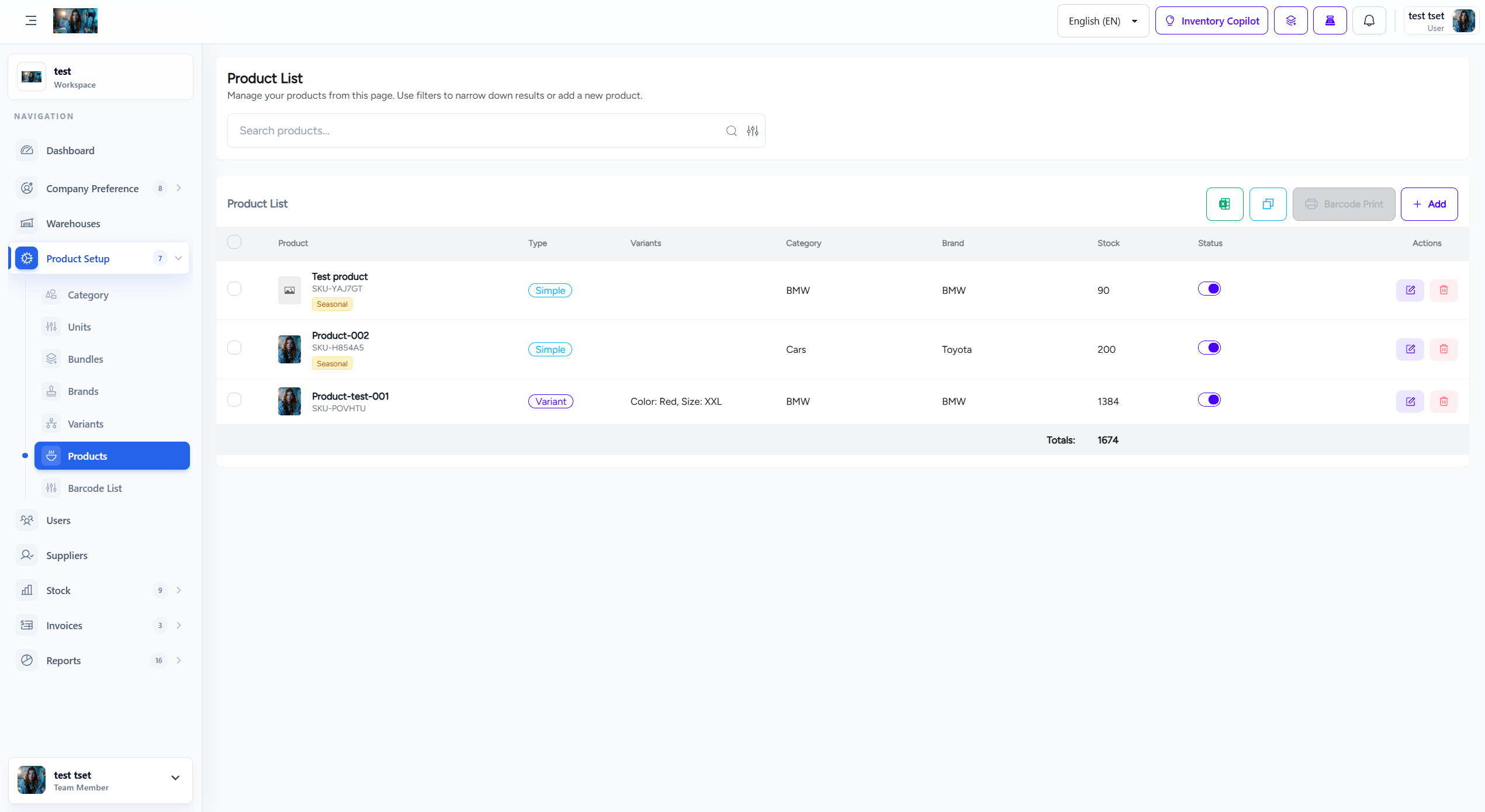
Product management screen