Company Preference - Inventory
The Inventory preference settings allow you to configure inventory-specific behaviors, stock management rules, and operational preferences for your company's inventory system.
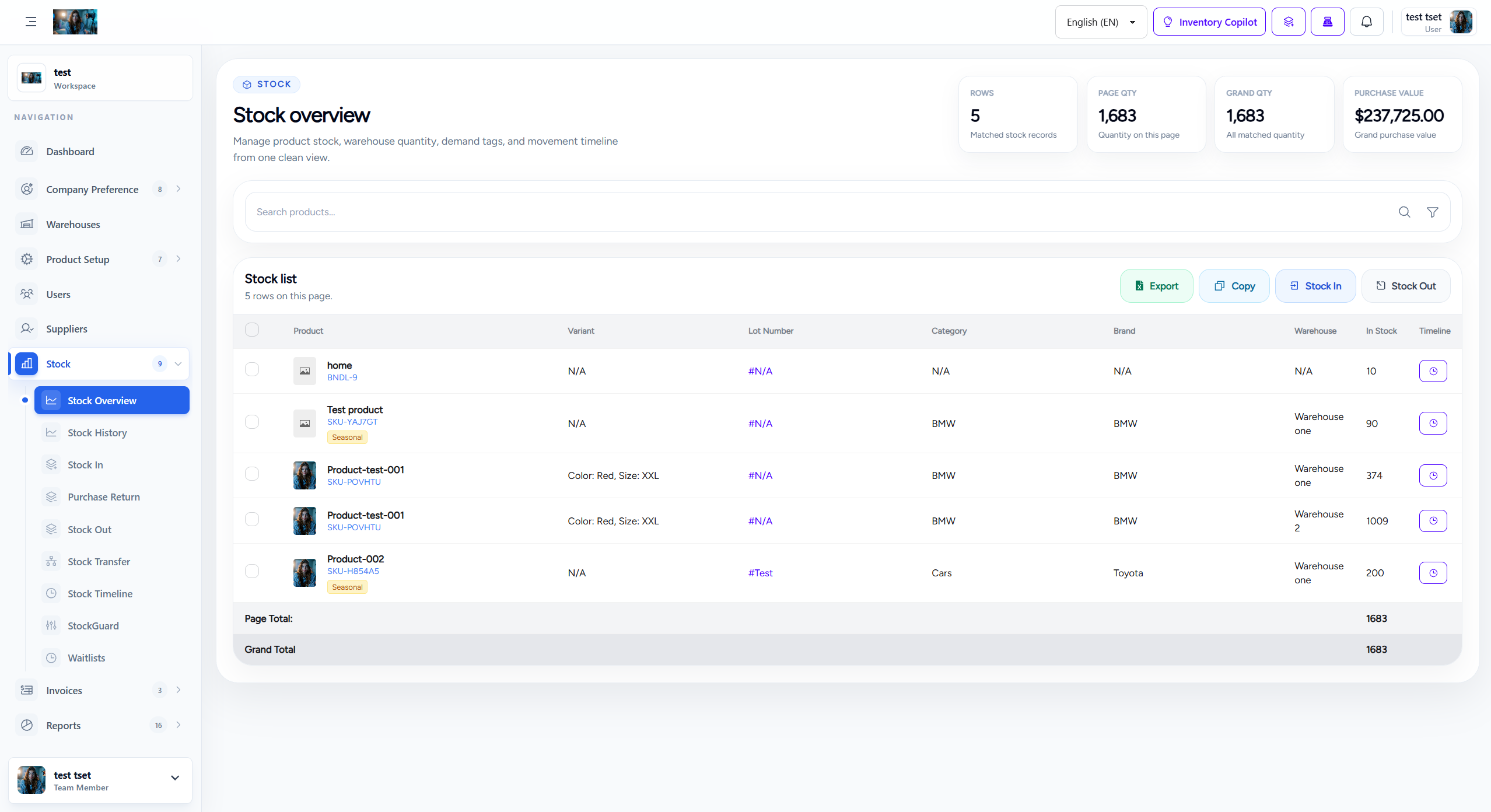
1. Overview
Inventory preferences provide granular control over how stock is managed, tracked, and reported within your company. These settings affect inventory workflows across all warehouses and sales channels.
- Stock Management Rules: Define how stock quantities are calculated, updated, and validated.
- Warehouse Operations: Configure default warehouse behaviors and transfer rules.
- Stock Visibility: Control how inventory is displayed across different sales channels and marketplaces.
- Alert Thresholds: Set up low stock alerts and reorder points for automated notifications.
2. Stock Management Settings
Configure core stock management behaviors that affect daily inventory operations:
| Setting | Description | Default Value |
|---|---|---|
| Allow Negative Stock | Enable or disable selling products with zero or negative stock quantities. | Disabled |
| Auto-Stock Deduction | Automatically deduct stock when sales are completed. | Enabled |
| Stock Validation Mode | Choose between strict (block insufficient stock) or warning (allow with alert) validation. | Warning |
| Lot Number Tracking | Enable lot/batch number tracking for inventory items. | Enabled |
| Expiry Date Tracking | Enable expiry date tracking for perishable inventory items. | Disabled |
3. Low Stock Alerts
Configure automated alerts when stock levels fall below specified thresholds:
- Low Stock Threshold: Set the minimum quantity that triggers a low stock alert (e.g., 10 units).
- Critical Stock Threshold: Set the quantity that triggers a critical stock alert (e.g., 5 units).
- Alert Notification: Choose to receive alerts via email, in-app notification, or both.
- Alert Frequency: Set how often low stock alerts are sent (immediate, daily, weekly).
4. Warehouse Operations
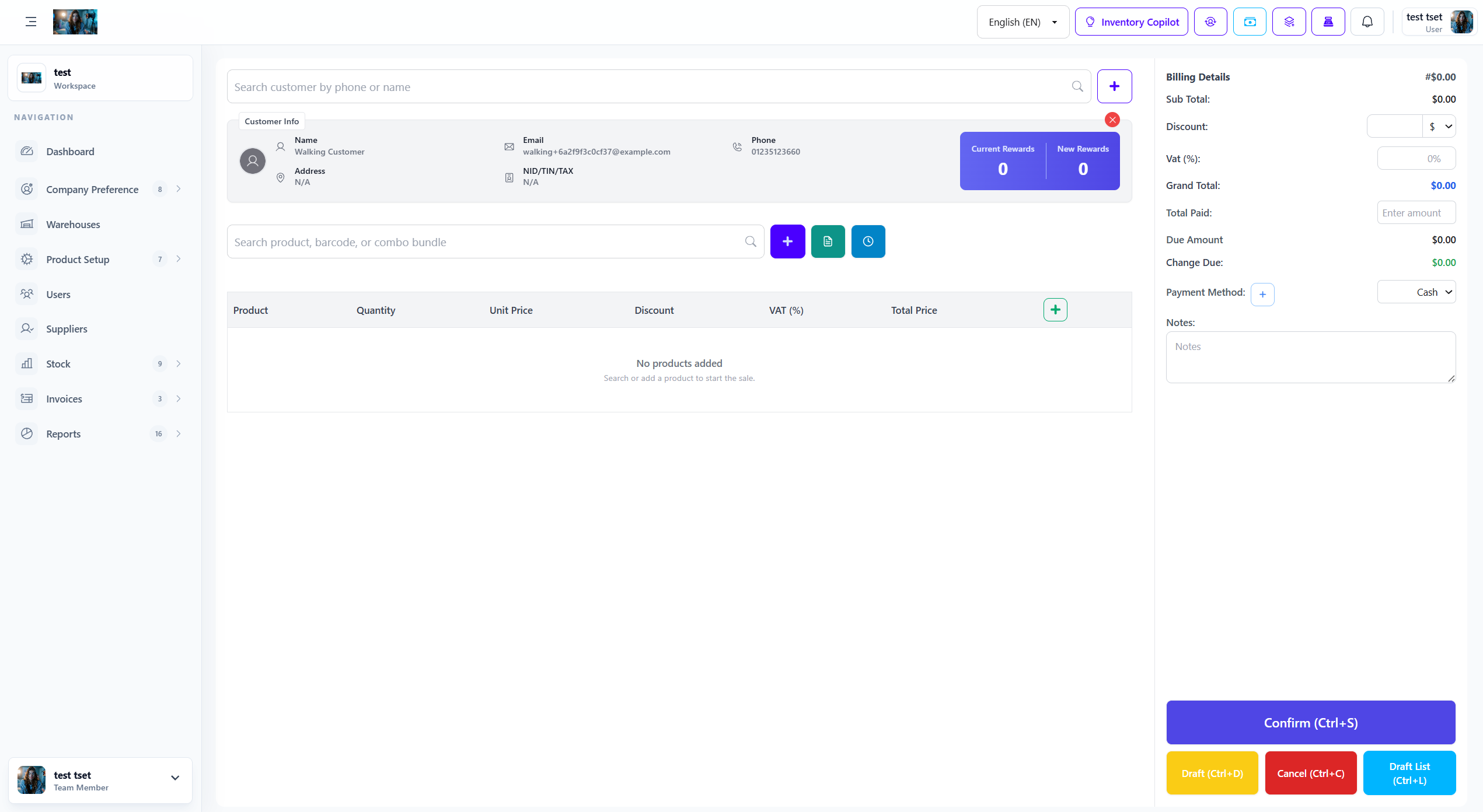
Configure default behaviors for warehouse operations and stock transfers:
- Default Warehouse: Set the default warehouse for new product additions and stock entries.
- Allow Cross-Warehouse Transfers: Enable or disable stock transfers between different warehouses.
- Transfer Approval Required: Require approval for stock transfers above a specified quantity.
- Auto-Assign Warehouse: Automatically assign warehouse based on product category or supplier.
5. Stock Visibility Control
Control how inventory is displayed across different sales channels and marketplaces:
- POS Stock Visibility: Show or hide specific products in the POS interface based on stock levels.
- Online Store Visibility: Control product visibility in online stores based on stock availability.
- Marketplace Integration: Sync stock levels with connected marketplaces (Amazon, eBay, etc.).
- Backorder Handling: Allow customers to place orders for out-of-stock items as backorders.
6. Stock Time Value (STV) Settings
Configure Stock Time Value parameters for aging inventory analysis:
- STV Calculation Method: Choose between FIFO, LIFO, or weighted average for stock value calculation.
- Aging Categories: Define aging brackets (e.g., 0-30 days, 31-60 days, 61+ days).
- Auto-Discount Threshold: Set the age at which products should be automatically discounted.
- Bundle Recommendation: Enable AI-powered bundle suggestions for aging stock.
7. StockGuard Settings
Configure StockGuard approval workflow for manual stock adjustments:
- Enable StockGuard: Turn on the approval workflow for manual stock adjustments.
- Unit Threshold: Set the quantity change threshold that requires approval (e.g., 5 units).
- Value Threshold: Set the value change threshold that requires approval (e.g., $100).
- Suspicious Reasons: Flag specific adjustment reasons that always require approval.
8. Barcode Configuration
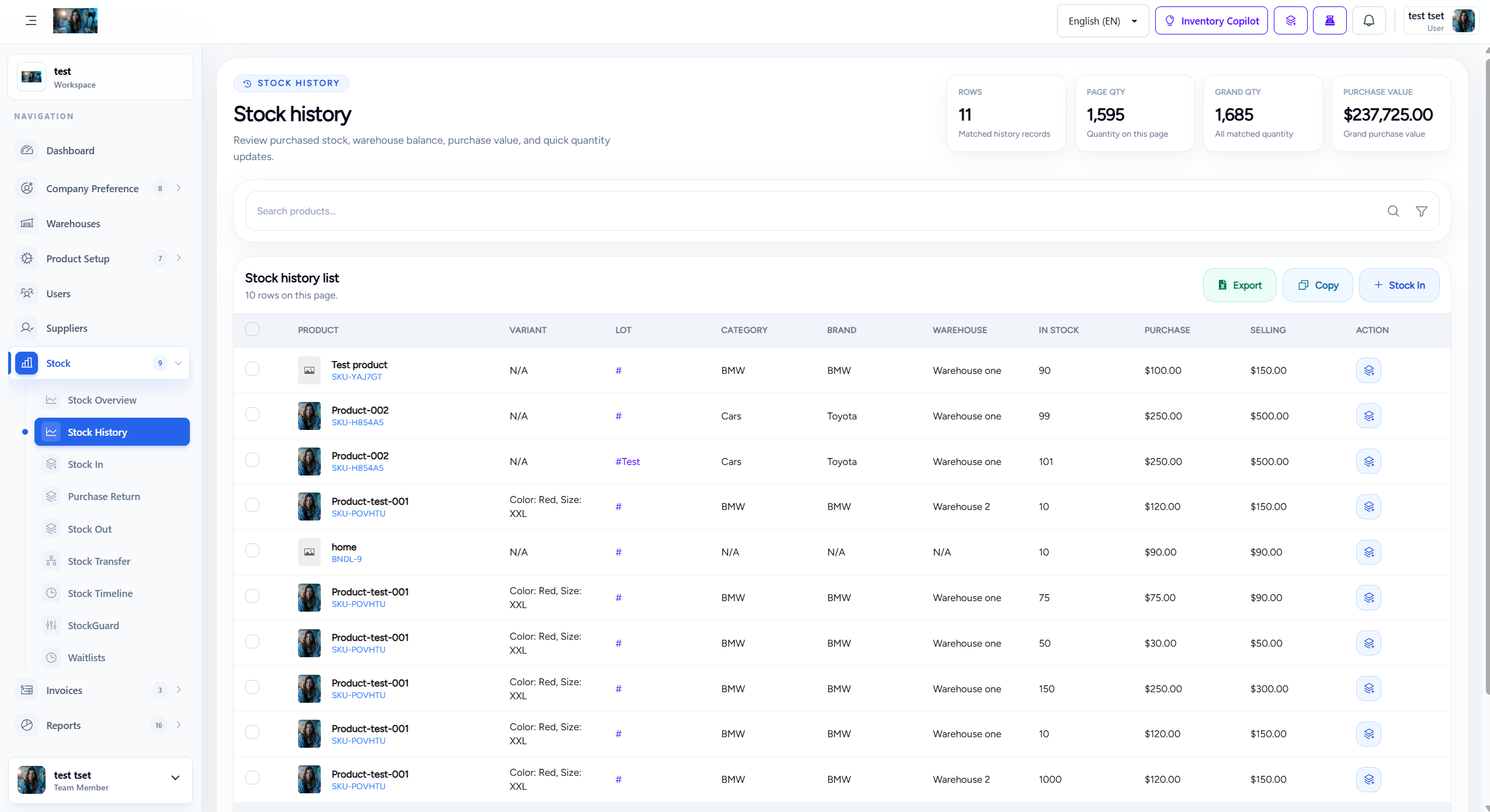
Configure barcode generation and scanning preferences:
- Barcode Format: Choose barcode format (CODE128, EAN13, UPC, QR Code).
- Auto-Generate Barcodes: Automatically generate barcodes for new products.
- Barcode Prefix: Set a prefix for company-specific barcodes.
- Scanner Mode: Configure scanner behavior (single scan, multi-scan, quantity entry).
9. Reporting Preferences
Configure inventory reporting and analytics preferences:
- Default Report Period: Set the default time period for inventory reports (daily, weekly, monthly).
- Include Zero Stock Items: Include or exclude items with zero stock in reports.
- Report Currency: Set the currency for inventory value reports.
- Auto-Generate Reports: Schedule automatic report generation and delivery.
10. How to Configure Inventory Preferences
Follow these steps to configure inventory preferences for your company:
- Navigate to Company Preference > Inventory from the sidebar menu.
- Review each setting section and configure according to your business requirements.
- Set appropriate thresholds for low stock and critical stock alerts.
- Configure warehouse operations based on your multi-warehouse setup.
- Enable StockGuard if you want approval workflows for manual adjustments.
- Configure barcode settings based on your scanning equipment.
- Click Save Settings to apply all changes.
11. Best Practices
Follow these best practices for optimal inventory preference configuration:
- Start with Conservative Thresholds: Begin with higher low stock thresholds and adjust based on actual usage patterns.
- Enable StockGuard for High-Value Items: Use approval workflows for expensive or critical inventory items.
- Regular Review: Review and update inventory preferences quarterly to align with business growth.
- Test Changes: Test preference changes in a staging environment before applying to production.
- Monitor Alerts: Set up appropriate alert frequencies to avoid notification fatigue while ensuring timely responses.
12. Troubleshooting
Common issues and solutions for inventory preferences:
| Issue | Possible Cause | Solution |
|---|---|---|
| Low stock alerts not triggering | Threshold set too high or notification disabled | Lower threshold or enable notifications |
| Stock not deducting after sales | Auto-stock deduction disabled | Enable auto-stock deduction in preferences |
| Warehouse transfers blocked | Cross-warehouse transfers disabled | Enable cross-warehouse transfers |
| Barcode scanning not working | Incorrect barcode format or scanner mode | Check barcode format and scanner mode settings |