v1.0.0 Stable
Rights
What This Option Does
The Rights module manages the master permission list used by the backoffice and tenant role system. Each right represents one allowed action or screen access, such as viewing invoices, editing products, opening reports, managing backups, or controlling POS setup.
This page is mainly used by the super admin or backoffice administrator to create, organize, edit, and remove permission keys. These rights are later assigned to companies and roles so each user only receives the access they need.
How Admin Uses This
- Open Backoffice > Rights to view the Right Management screen.
- Use the search field to find a permission by right name, such as
invoice.createorreports.accounting. - Select a module from the left module list to filter rights by business area.
- Review the right cards in the main list. Each card shows the module name and permission key.
- Use add, edit, delete, or bulk selection actions to maintain the permission catalog.
Right Management Screen Overview
The screenshot shows the main Right Management interface. It is split into a module filter panel on the left and a permission list on the right.
Search Rights
- The search box at the top is used to find permissions quickly by right name.
- Search works best with exact permission words such as
invoice,product,reports,backup, orstock. - Use search before adding a new right to avoid duplicate permission keys.
Module Filter List
- The left panel groups rights by module, such as Backup, Brand, Category, Dashboard, Discount, Invoice, Logs, POS Setup, Preferences, Product, and Reports.
- Each module shows a count so the admin can understand how many rights exist under that module.
- Click All Modules to show every right, or click a single module to narrow the list.
- This structure makes large permission sets easier to manage and review.
Right List
- The main list displays rights as cards with the module label and permission key.
- Example rights shown in the screenshot include
reports.accounting,backup.view,invoice.edit,invoice.create, andproduct.barcode.list. - The selected module title and total visible rights are shown above the list.
- Use this area to review naming consistency before assigning rights to companies or roles.
Add Right
- Click Add Right from the top-right corner of the Right List section.
- Select or enter the module name where the right belongs.
- Enter a clear permission key using a consistent format such as
module.actionormodule.feature.action. - Save the right and confirm it appears under the correct module filter.
- After creating a new right, assign it to the required company or role before expecting users to access that feature.
Edit Right
- Find the right from search or module filter.
- Click the edit icon on the right card.
- Update the module or permission key only when the change is intentional.
- Save the update and verify any related company or role permissions still work correctly.
- Avoid renaming active permission keys without updating the application logic that checks those keys.
Delete Right
- Find the permission key that is no longer used.
- Click the delete icon on the right card.
- Confirm deletion only after checking that no role, company, or feature flow depends on that right.
- After deletion, test the related menu/action to confirm the system handles missing permission safely.
Bulk Selection
- Use the checkbox on each right card to select individual permissions.
- Use Select all shown to select all rights currently visible after search or module filtering.
- Bulk selection is useful for reviewing or preparing grouped updates, but it should be used carefully because many rights can affect critical access.
Recommended Permission Naming
- Use short, readable, lowercase keys.
- Keep the module name first, for example
invoice.view,invoice.create,product.edit, orreports.daily-purchase. - Use action words consistently, such as
view,create,edit,delete,list,approve,sync, ormanage. - Do not create multiple rights for the same behavior with different names.
Screenshot Overview
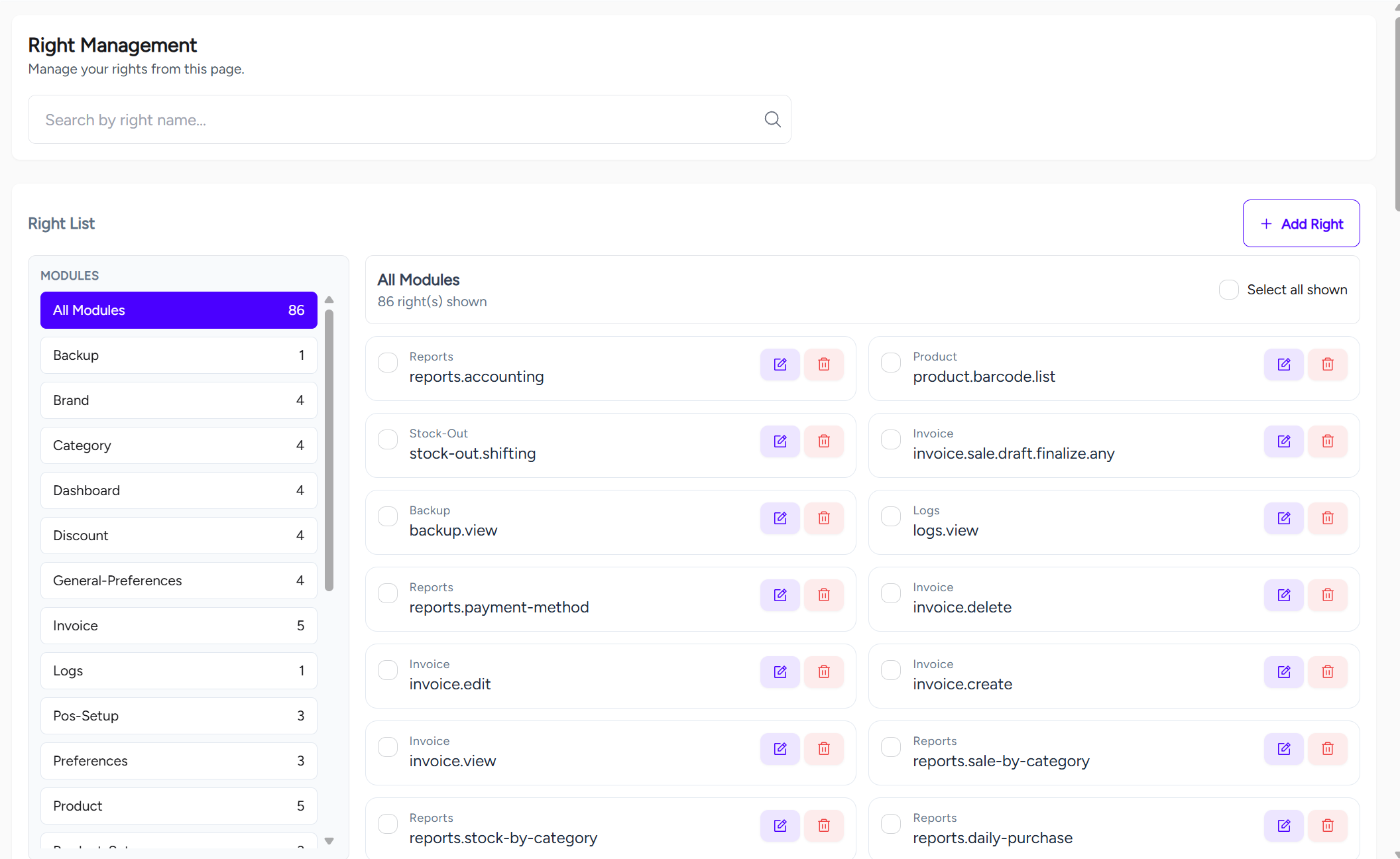
Right Management screen with search, module filters, right list, select all, add, edit, and delete actions.
Enterprise Technical Specification
Business Capabilities
- Right master list management
- Module-wise permission filtering
- Permission search by right name
- Right create, update, and delete
- Bulk selection for visible permissions
- Permission governance for company and role assignment
API Contract Surface
Primary API endpoints used by this module:
/api/v1/backoffice/rights/api/v1/backoffice/rights/{id}/api/v1/backoffice/rights/modules/api/v1/backoffice/companies/{id}/rights
Permission Blueprint
Recommended permission keys for production role design:
backoffice.rights.viewbackoffice.rights.createbackoffice.rights.editbackoffice.rights.deletebackoffice.rights.update
Operational Risk and Control Notes
- Over-privileged rights expose sensitive modules and destructive actions.
- Deleting an active right can break menu visibility or block user actions unexpectedly.
- Renaming permission keys can break application checks if the frontend or backend still expects the old key.
- Duplicate rights create confusion during company and role permission assignment.
- Enable activity logging and include
company_id, actor ID, and target entity ID in audit traces. - Apply least-privilege principle for create/update/delete actions.
QA Verification Checklist
- Validate right list load, loading state, empty state, and module count accuracy.
- Verify search returns correct results for full and partial permission names.
- Confirm module filter shows only rights under the selected module.
- Verify add/edit/delete response contract (
status,message,data). - Confirm duplicate permission keys are prevented or handled safely.
- Confirm unauthorized backoffice roles cannot create, edit, or delete rights.
- Test company or role assignment after a new right is created.