Configurations
What This Option Does
The Configurations module manages global platform settings that control branding, currency display, pagination, timezone, logo assets, and email behavior. These settings affect the backoffice interface and can also influence tenant-facing screens depending on how the platform is configured.
This page should be handled by the super admin or trusted backoffice administrator because incorrect values can change the visual identity, formatting, and communication behavior across the system.
How Admin Uses This
- Open Backoffice > Configurations.
- Select the required tab, such as Basic Settings or Email Configuration.
- Update only the settings that need to change.
- Upload logo or icon files when branding assets need to be replaced.
- Click Save Configuration and verify the updated behavior in the impacted modules.
Configuration Screen Overview
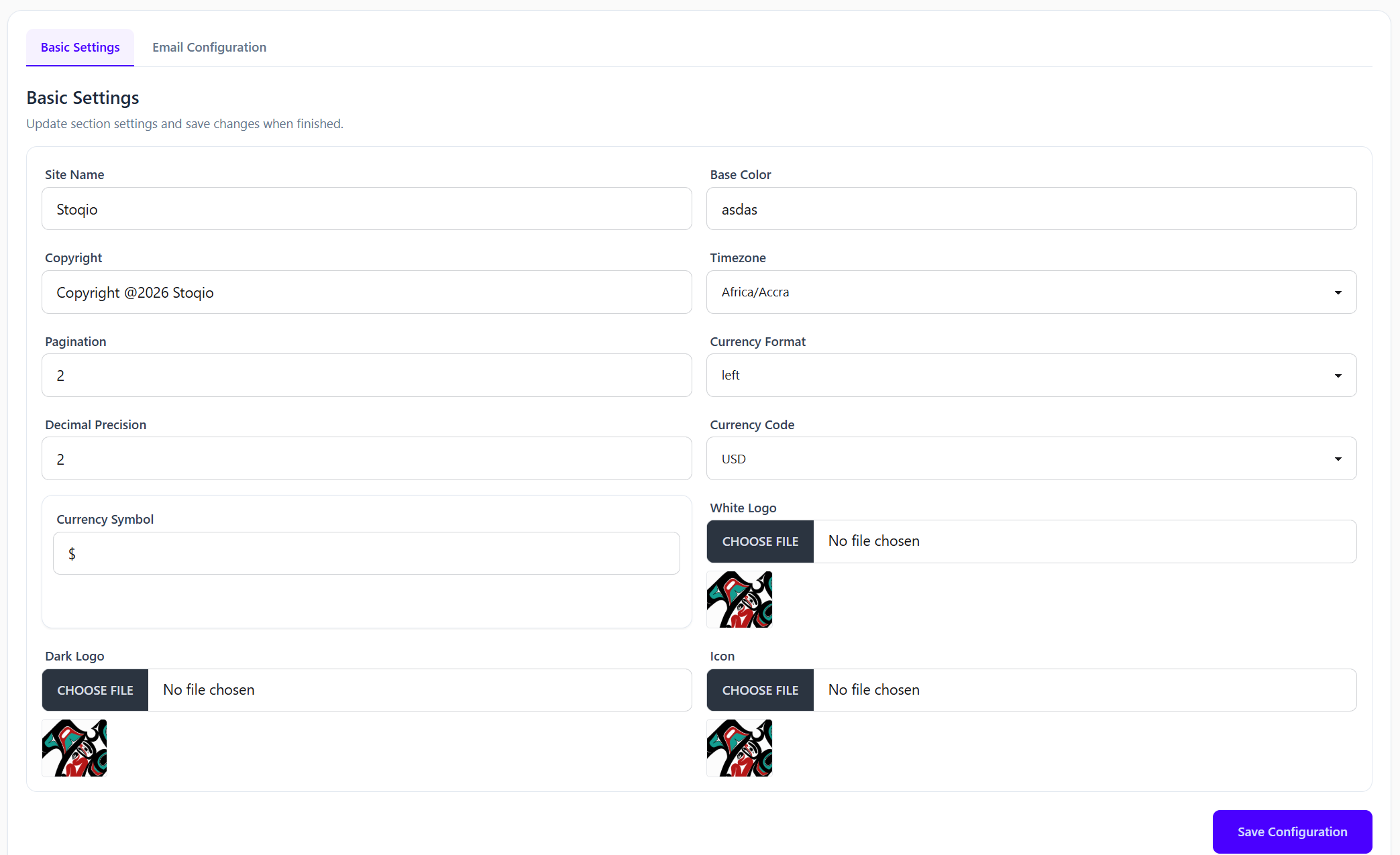
The screenshot shows the Basic Settings tab. The page uses tabs at the top so administrators can switch between different configuration groups without leaving the module.
Basic Settings Tab
- Site Name: controls the platform name shown in key interface areas.
- Base Color: stores the main brand color value used by the platform theme.
- Copyright: controls footer copyright text.
- Timezone: sets the default timezone for date and time display.
- Pagination: controls how many records are shown per page in supported lists.
- Currency Format: controls whether the currency symbol/code appears on the left or right side of amounts.
- Decimal Precision: controls how many decimal places are shown in monetary and numeric values.
- Currency Code: sets the default currency code such as
USD. - Currency Symbol: sets the symbol used with prices and totals, such as
$. - White Logo, Dark Logo, and Icon: upload branding images used in different theme or layout areas.
Email Configuration Tab
- Use this tab to configure platform email delivery settings.
- Email settings commonly control mail driver, host, port, username, password, encryption, sender email, and sender name.
- After changing email settings, send a test email or trigger a known email event to confirm delivery works.
- Do not expose email passwords or SMTP credentials to non-admin users.
Updating Basic Settings
- Open the Basic Settings tab.
- Update text fields such as site name, copyright, pagination, decimal precision, or currency symbol.
- Select dropdown values such as timezone, currency format, and currency code.
- Upload logo files only in supported image formats such as PNG, JPG, JPEG, or SVG if the system allows it.
- Click Save Configuration.
- Refresh the backoffice and verify that the new branding and formatting are visible.
Updating Branding Assets
- Use the white logo for dark backgrounds or sidebar/header areas where a light logo is required.
- Use the dark logo for light backgrounds where a dark logo is easier to read.
- Use the icon for compact display areas such as favicon, collapsed sidebar, browser tab, or app shortcut.
- Keep image dimensions consistent with the existing design to avoid stretched or blurry logos.
- After upload, clear browser cache or hard refresh if the old logo still appears.
Currency and Number Formatting
- Set currency code and symbol before the platform is used for live billing, sales, purchases, or reporting.
- Use decimal precision carefully because it affects totals, product prices, invoices, reports, and financial display.
- Currency format should match the target market, for example left format for
$100or right format for100?. - After changing currency settings, verify invoice, POS, purchase, and report screens.
Timezone and Pagination
- Timezone controls how dates and times are displayed in logs, reports, invoices, subscriptions, and activity records.
- Choose the timezone that matches the main operating region of the platform.
- Pagination controls list size in supported tables. A very high value can slow down list pages.
- After changing pagination, test large list pages such as companies, users, invoices, products, and reports.
Screenshot Overview
Enterprise Technical Specification
Business Capabilities
- Global configuration read/update
- Legacy configuration compatibility
- Brand identity management
- Currency and number display control
- Timezone and pagination control
- Email delivery configuration
- Logo and icon upload management
API Contract Surface
Primary API endpoints used by this module:
/api/v1/backoffice/cofigurations/api/v1/backoffice/configurations/api/v1/backoffice/settings/sections/api/v1/backoffice/settings/{key}
Permission Blueprint
Recommended permission keys for production role design:
backoffice.config.viewbackoffice.config.update
Operational Risk and Control Notes
- Wrong configuration values can impact the whole platform.
- Incorrect email settings can stop password reset, verification, invoice, or notification emails.
- Incorrect timezone settings can create confusion in reports, logs, subscriptions, and invoice dates.
- Incorrect currency settings can make financial values appear wrong even when stored values are correct.
- Large pagination values can reduce list performance on data-heavy modules.
- Wrong logo dimensions can break layout or reduce brand quality.
- Enable activity logging and include
company_id, actor ID, and target entity ID in audit traces. - Apply least-privilege principle for create/update/delete actions.
QA Verification Checklist
- Validate configuration load, loading state, missing value handling, and save response.
- Verify basic settings persist after page refresh.
- Confirm logo, icon, and branding uploads display correctly in the interface.
- Verify currency symbol, code, format, and decimal precision on POS, invoice, purchase, and report pages.
- Confirm timezone changes affect displayed dates consistently.
- Test pagination value on large list pages.
- Verify email configuration by sending or triggering a test email.
- Confirm permission denial responses for unauthorized backoffice roles.