v1.0.0 Stable
Company Preference - Demand Tags
Demand Tags allow you to manually apply demand context to products that algorithms might miss, providing human intelligence to complement automated systems.
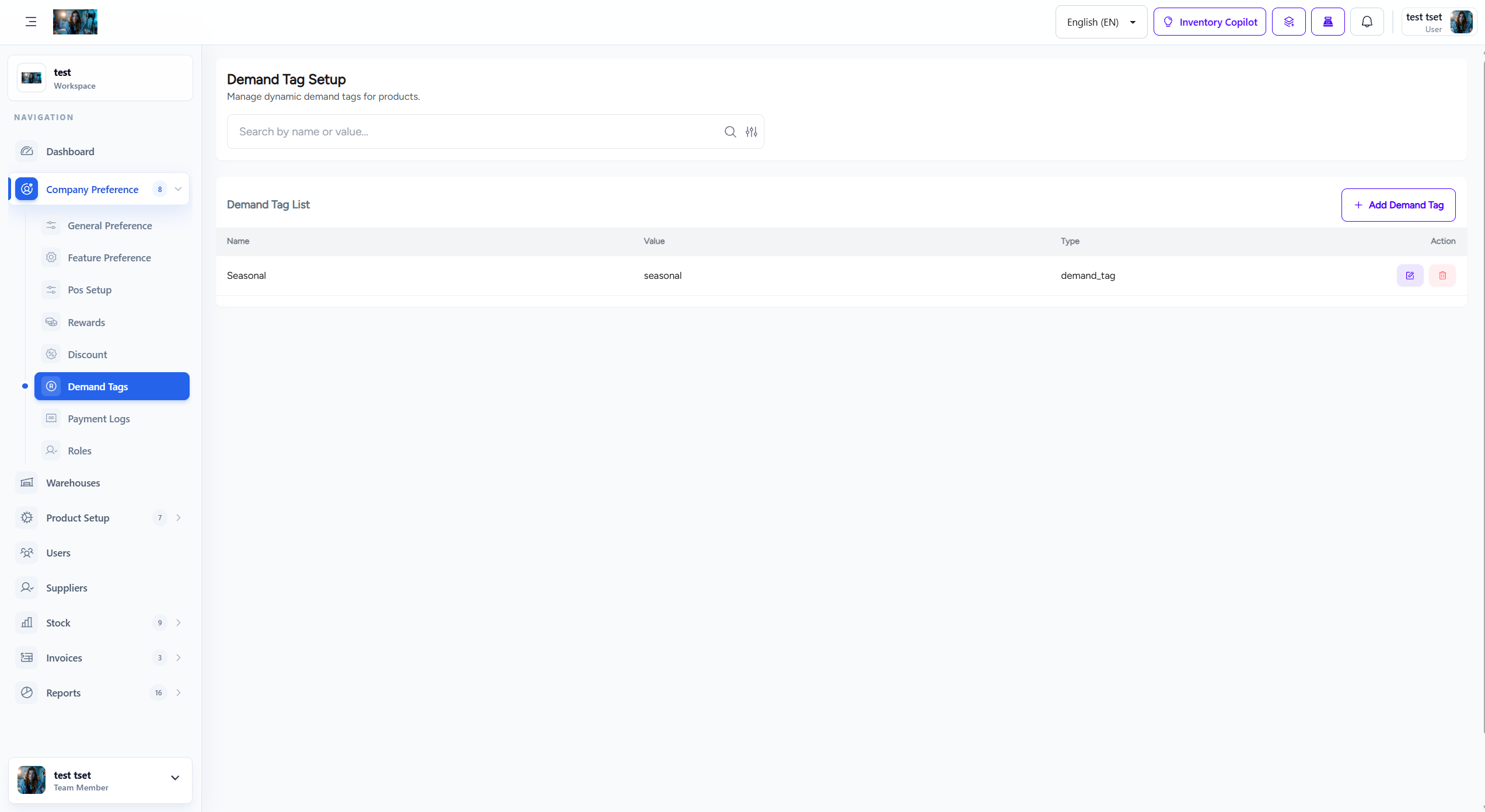
Figure 1.0: The Demand Tags settings interface.
1. Overview
Demand Tags are manual labels applied to products to indicate their demand characteristics, helping with inventory planning and stock management decisions.
- Human Intelligence: Apply real-world demand context that algorithms often miss.
- Custom Tags: Create custom demand tags specific to your business.
- Visual Indicators: Color-coded tags for easy identification in stock lists.
- Filtering: Filter stock by demand tags for targeted analysis.
2. Default Demand Tags
The system includes pre-configured demand tags with specific meanings:
| Tag | Description | Color |
|---|---|---|
| High Demand | Products with consistently high sales velocity. | Green |
| Seasonal | Products with seasonal demand patterns. | Blue |
| Slow Moving | Products with low sales velocity. | Yellow |
| Clearance | Products marked for clearance or discontinuation. | Red |
| New Arrival | Recently added products to monitor initial demand. | Purple |
3. Custom Demand Tags
Create custom demand tags specific to your business needs:
- Tag Name: Descriptive name for the demand tag.
- Description: Explain when and why to use this tag.
- Color: Choose a color for visual identification.
- Priority: Set priority level for sorting and filtering.
4. How to Configure Demand Tags
Follow these steps to configure demand tags:
- Navigate to Company Preference > Demand Tags from the sidebar menu.
- Review the default demand tags and their meanings.
- Create custom tags by clicking "Add New Tag".
- Fill in tag name, description, and select a color.
- Set priority levels if needed.
- Click Save to create the tag.
Important Note: Demand tags are applied manually to products. Train your team on when and how to use each tag effectively.
5. Applying Demand Tags
Demand tags can be applied to products in the following ways:
- Product Setup: Apply tags when creating or editing products.
- Stock List: Apply tags directly from the stock overview page.
- Bulk Update: Apply tags to multiple products at once.
6. Best Practices
Follow these best practices for demand tag usage:
- Consistent Application: Apply tags consistently across similar products.
- Regular Review: Review and update tags quarterly based on demand patterns.
- Team Training: Ensure all team members understand tag meanings.
- Data-Driven: Use sales data to inform tag decisions.