v1.0.0 Stable
Company Preference - General
General Preference settings allow you to configure basic company information, contact details, social media links, content policies, and branding assets for your stoqio platform.
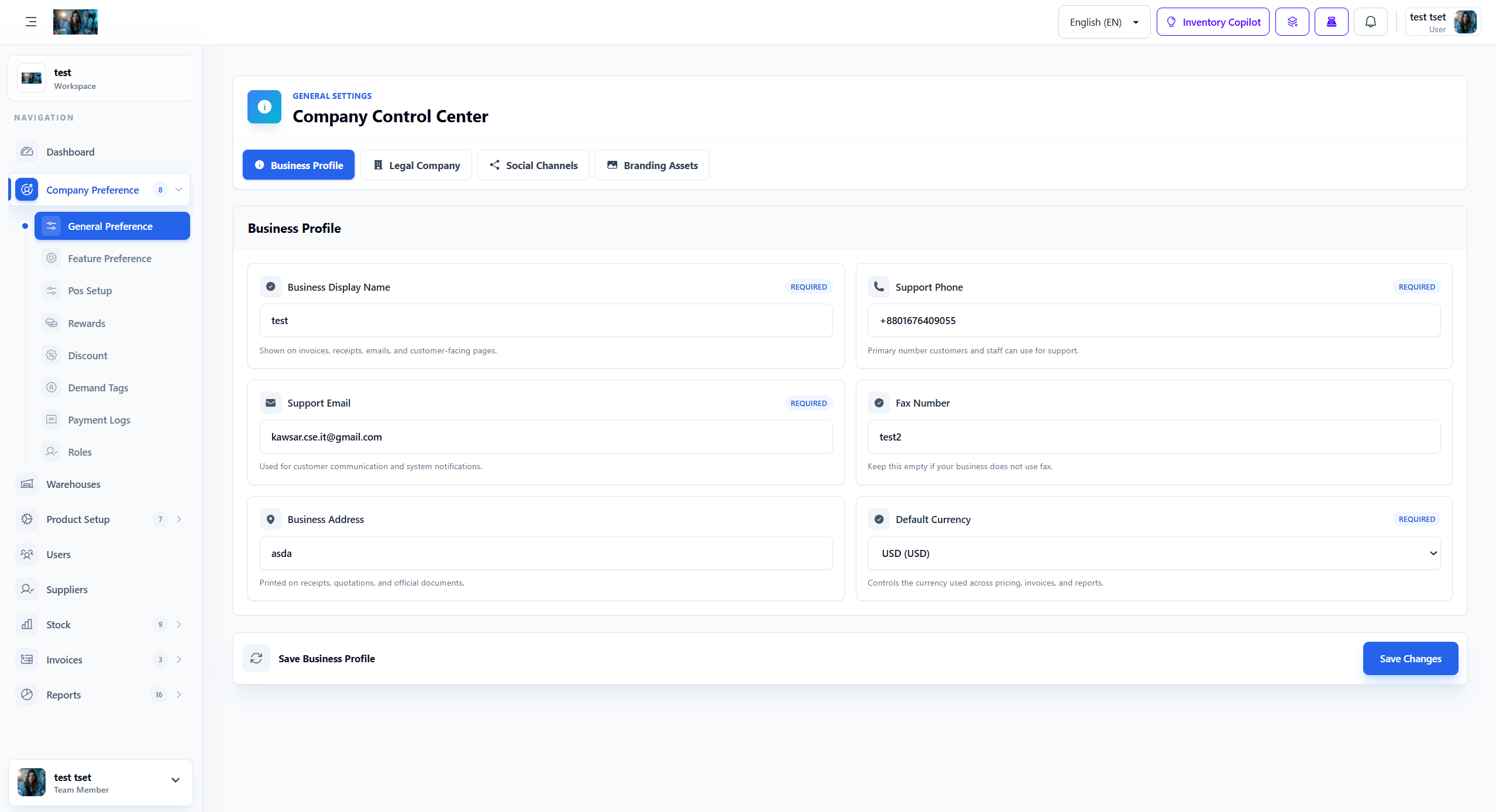
Figure 1.0: The General Preference settings interface.
1. Basic Information Tab
The Basic Information tab contains essential company details that appear across the platform:
| Field | Description | Example |
|---|---|---|
| Application Name | The name of your application/company displayed in the header and title. | MSR1 |
| Application Phone | Primary contact phone number for customer support. | +336790874301 |
| Application Email | Primary email address for business communications. | bhaiyanrazzak85@gmail.com |
| Application Fax | Fax number for document transmission (if applicable). | asdasd |
| Application Address | Physical business address displayed on invoices and documents. | 148 ter rue La Fayette, 75010 Paris |
| Currency | Default currency for all financial transactions and reports. | USD |
2. Company Information Tab
The Company Information tab contains additional business details and operational settings:
- Company Registration Number: Official business registration number.
- Tax/VAT Number: Tax identification number for invoicing and compliance.
- Business Type: Type of business entity (e.g., Retail, Wholesale, Distribution).
- Industry Sector: Primary industry sector classification.
- Year Established: Year the company was founded.
3. Social Media Links Tab
Configure your social media presence with direct links to your profiles:
| Platform | Field Name | Purpose |
|---|---|---|
| facebook_link | Link to Facebook business page | |
| twitter_link | Link to Twitter/X profile | |
| instagram_link | Link to Instagram business account | |
| linkedin_link | Link to LinkedIn company page | |
| YouTube | youtube_link | Link to YouTube channel |
4. Content & Policies Tab
Manage your website content and legal policies using rich text editors:
- About Us: Company description and background information displayed on the website.
- Terms and Conditions: Legal terms governing the use of your platform.
- Privacy Policy: Data protection and privacy policy for user information.
- Return Policy: Product return and refund policy details.
5. Branding Assets Tab
Upload and manage your company's visual branding assets:
- Site Logo: Upload your company logo (recommended: PNG, JPG, SVG, max 2MB).
- Site Favicon: Upload a small icon for browser tabs (recommended: 16x16 or 32x32 pixels, ICO or PNG).
6. How to Configure General Preferences
Follow these steps to configure general preferences:
- Navigate to Company Preference > General Preference from the sidebar menu.
- Select the appropriate tab (Basic Information, Company Information, Social Media Links, Content & Policies, or Branding Assets).
- Fill in the required fields with accurate company information.
- For rich text editors, use the formatting toolbar to style your content.
- For branding assets, click "Choose File" to upload images.
- Click Save Settings to apply all changes.
Important Note: Changes to general preferences affect the entire platform immediately. Ensure all information is accurate before saving, especially contact details and legal policies.
7. Best Practices
Follow these best practices for general preference configuration:
- Keep Information Current: Regularly update contact information and business details.
- Legal Compliance: Ensure terms, conditions, and privacy policies comply with local regulations.
- Brand Consistency: Use high-quality, properly sized logos and favicons for professional appearance.
- Social Media Integration: Verify all social media links are correct and active.
- Content Quality: Write clear, professional content for About Us and policy sections.