v1.0.0 Stable
Company Preference - POS Setup
POS Setup preferences allow you to configure Point of Sale settings, including receipt templates, tax settings, payment methods, and cashier workflows.
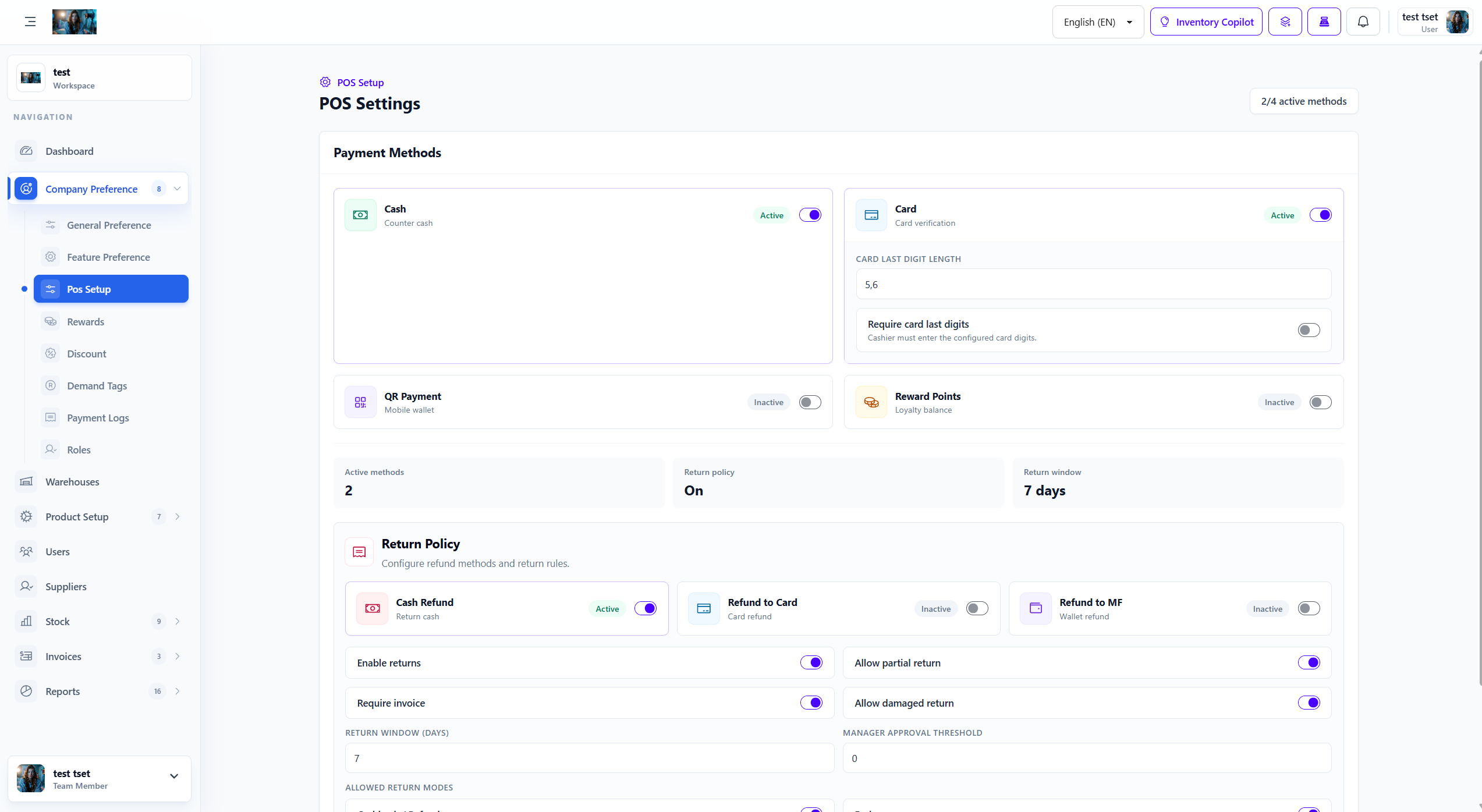
Figure 1.0: The POS Setup settings interface.
1. Overview
POS Setup preferences control how the Point of Sale system operates, including receipt formatting, tax calculations, payment processing, and cashier management.
- Receipt Configuration: Customize receipt headers, footers, and formatting.
- Tax Settings: Configure tax rates and tax-inclusive pricing.
- Payment Methods: Enable/disable payment methods and set default options.
- Cashier Workflow: Configure cashier permissions and shift requirements.
2. Receipt Settings
Configure how receipts are generated and printed:
- Receipt Header: Company name, address, and contact information on receipts.
- Receipt Footer: Thank you message, return policy, and contact details.
- Receipt Width: Set receipt paper width (58mm, 80mm, etc.).
- Show Barcode: Include product barcodes on receipts.
- Show Customer Info: Display customer details on receipts.
3. Tax Configuration
Set up tax rates and tax calculation methods:
- Default Tax Rate: Set the default tax percentage for all products.
- Tax-Inclusive Pricing: Display prices including tax by default.
- Tax Number: Company tax identification number for receipts.
- Multiple Tax Rates: Enable different tax rates for different product categories.
4. Payment Methods
Configure available payment methods in the POS:
| Payment Method | Description | Default |
|---|---|---|
| Cash | Accept cash payments with change calculation. | Yes |
| Card | Accept credit/debit card payments. | No |
| Mobile Payment | Accept mobile wallet payments (Apple Pay, Google Pay, etc.). | No |
| Bank Transfer | Accept bank transfer payments. | No |
5. How to Configure POS Setup
Follow these steps to configure POS settings:
- Navigate to Company Preference > POS Setup from the sidebar menu.
- Configure receipt settings (header, footer, width).
- Set up tax rates and calculation methods.
- Enable/disable payment methods as needed.
- Configure cashier workflow settings if applicable.
- Click Save Settings to apply all changes.
Important Note: POS settings affect all cashier terminals immediately. Test receipt printing and payment processing after making changes.
6. Best Practices
Follow these best practices for POS setup configuration:
- Test Receipts: Print test receipts to verify formatting and content.
- Tax Compliance: Ensure tax rates comply with local regulations.
- Payment Security: Use secure payment methods and comply with PCI standards.
- Cashier Training: Train cashiers on new POS workflows before implementation.