Inventory - Warehouses
Warehouse management allows you to create and manage multiple storage locations, track stock across warehouses, and transfer inventory between locations efficiently.
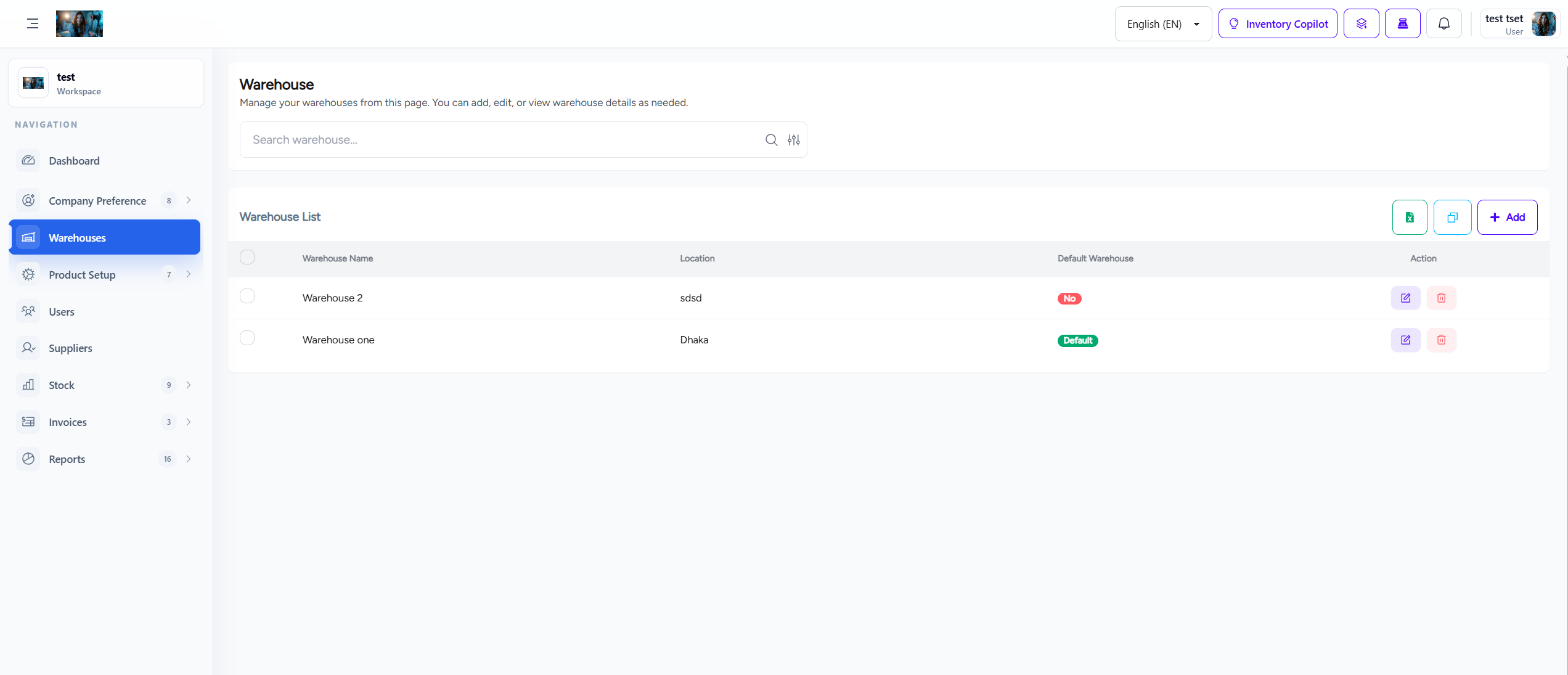
1. Overview
The Warehouse module provides comprehensive multi-warehouse inventory management capabilities, enabling businesses with multiple storage locations to maintain centralized control while allowing location-specific operations.
- Multi-Warehouse Support: Manage unlimited warehouse locations from a single system.
- Location Tracking: Track exact stock quantities in each warehouse.
- Stock Transfers: Transfer inventory between warehouses with full audit trail.
- Warehouse-Specific Reports: Generate reports for individual or all warehouses.
2. Warehouse Setup
Create and configure warehouse locations using the Add New Warehouse modal:
| Field | Description | Required |
|---|---|---|
| Warehouse Name | Unique name for the warehouse location (e.g., Main Warehouse, Branch A, Distribution Center). | Yes |
| Warehouse Location | Physical address or location description of the warehouse. | Yes |
| Is Default Warehouse? | Toggle to set this as the default warehouse for automatic stock allocation. Only one warehouse can be set as default. | No |
Adding a New Warehouse
To add a new warehouse:
- Click the Add Warehouse button on the warehouse list page.
- The Add New Warehouse modal will appear.
- Enter the Warehouse Name (e.g., "Main Warehouse").
- Enter the Warehouse Location (e.g., "123 Industrial Park, City, State").
- Toggle Is Default Warehouse? if this should be the primary warehouse for stock allocation.
- Click Save to create the warehouse.
- Click Cancel to close the modal without saving.
3. Stock Management
Manage inventory within each warehouse with full visibility and control:
- Per-Warehouse Stock: View and manage stock levels for each warehouse independently.
- Stock In: Receive stock into specific warehouses from purchases or returns.
- Stock Out: Process sales and stock removal from specific warehouses.
- Stock Adjustment: Manual stock adjustments with warehouse selection.
- Low Stock Alerts: Warehouse-specific low stock notifications.
4. Warehouse Transfers
Transfer stock between warehouses with complete tracking and approval workflows:
- Initiate Transfer: Create stock transfer requests between warehouses.
- Transfer Approval: Require approval for transfers above specified quantities.
- Transfer Tracking: Track transfer status (Pending, Approved, In Transit, Completed).
- Transfer History: Complete audit trail of all warehouse transfers.
- Batch Transfers: Transfer multiple products in a single operation.
5. Warehouse-Specific Reports
Generate detailed reports for individual warehouses or across all locations:
- Warehouse Stock Summary: Total stock value and quantity per warehouse.
- Warehouse Movement Report: Stock in and out movements by warehouse.
- Transfer Report: History of all stock transfers between warehouses.
- Warehouse Performance: Compare performance across multiple warehouses.
- Aging Stock by Warehouse: Stock time value analysis per location.
6. How to Configure Warehouses
Follow these steps to set up and manage warehouses:
- Navigate to Inventory > Warehouses from the sidebar menu.
- Click Add Warehouse button to open the Add New Warehouse modal.
- Fill in the required fields:
- Warehouse Name: Enter a unique name for the warehouse.
- Warehouse Location: Enter the physical address or location.
- Toggle Is Default Warehouse? if this should be your primary warehouse.
- Click Save to create the warehouse.
- To edit an existing warehouse, click the Edit button next to the warehouse in the list.
- To delete a warehouse, click the Delete button (only available if warehouse has no stock).
7. Setting Default Warehouse
Configure a default warehouse for automatic stock allocation:
- During Creation: Toggle Is Default Warehouse? when adding a new warehouse.
- Edit Existing: Edit an existing warehouse and toggle the default setting.
- Automatic Behavior: New products are automatically assigned to the default warehouse.
- Purchase Orders: Stock from purchases is received into the default warehouse unless specified otherwise.
- Single Default: Only one warehouse can be set as default at a time.
8. Best Practices
Follow these best practices for effective warehouse management:
- Clear Naming Convention: Use consistent naming (e.g., Main Warehouse, Branch A, Distribution Center).
- Regular Stock Counts: Perform periodic physical stock counts per warehouse.
- Transfer Approval: Enable approval workflows for transfers to maintain control.
- Warehouse Managers: Assign dedicated managers for each warehouse location.
- Location-Specific Pricing: Consider different pricing strategies per warehouse if applicable.
- Monitor Transfers: Regularly review transfer patterns to optimize stock distribution.
9. Troubleshooting
Common issues and solutions for warehouse management:
| Issue | Possible Cause | Solution |
|---|---|---|
| Cannot delete warehouse | Warehouse contains stock | Transfer or sell all stock first, then deactivate |
| Transfer not visible | Feature not enabled | Enable Warehouse Stock Transfer in Feature Preferences |
| Stock mismatch | Manual adjustment or transfer error | Review Stock Timeline for audit trail |
| Warehouse not showing in POS | Warehouse inactive or no permissions | Activate warehouse and check user permissions |